
How to watch netflix in vr usually comes down to one question: are you trying to use the official Netflix VR app, a web browser inside your headset, or a “PC-to-headset” method like Virtual Desktop.
If you have tried this before, you already know the annoying parts, blank screens with DRM errors, audio that routes to the wrong device, low resolution that feels worse than your phone, or a headset that gets uncomfortable halfway through a movie.
This guide breaks it into practical paths that work for most people in the US, plus a quick decision table, setup steps, and troubleshooting that saves time.
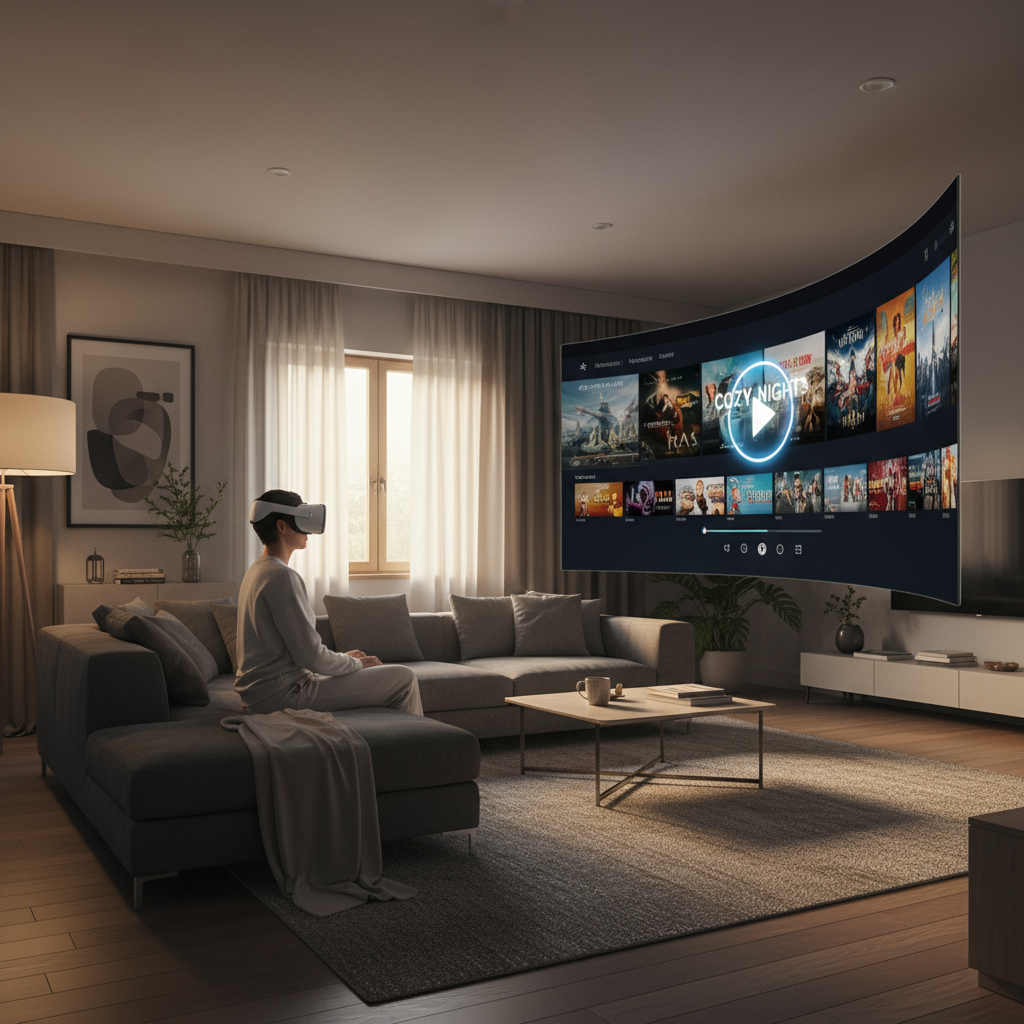
Quick answer: the 3 common ways to watch Netflix in VR
Most setups fall into one of these, and the “best” choice depends on your headset and how picky you are about quality.
- Standalone headset + built-in browser: simplest, often works, quality varies.
- Official Netflix VR app (where available): easy to use, but can feel dated and limited on some platforms.
- PC streaming to headset (Virtual Desktop, SteamVR theater apps): usually best image quality, more setup.
According to Netflix Help Center, Netflix works on supported browsers and devices, and playback restrictions can apply depending on device and browser support.
Pick your best method (table)
If you just want the least friction, start here and follow the matching section below.
| Situation | Recommended method | Why | Watch-outs |
|---|---|---|---|
| Meta Quest (2/3/Pro) and no PC | Headset browser | Fast setup, no extra hardware | DRM or resolution limits can happen |
| Quest with a capable PC | PC streaming (Virtual Desktop) | Often sharper, better control | Wi‑Fi quality matters a lot |
| PC VR headset (Valve Index, Vive, etc.) | PC browser or theater app | Native PC playback, many theater options | Browser DRM settings can block playback |
| You want “virtual cinema” vibes | Theater app (Bigscreen, etc.) | Environment and social rooms | Some apps rely on PC streaming for Netflix |
Method 1: Watch Netflix in VR using a headset browser (Quest and similar)
This is the most common answer to how to watch netflix in vr when you want it simple. You open a browser inside the headset, sign in, press play, and optionally resize the screen or switch environments.
Steps that usually work
- Connect to strong Wi‑Fi (ideally 5 GHz or Wi‑Fi 6/6E if your router supports it).
- Open the headset browser (for Quest, many people try Meta Quest Browser first).
- Go to Netflix.com and sign in.
- Start playback, then set the view to “full screen” if the player offers it.
If the video refuses to play, it is often a DRM support mismatch in that specific browser build, not your account. In that case, skip ahead to the troubleshooting section for alternate routes.

Method 2: Use the Netflix VR app (when available)
On some headsets and stores, you may still find an official Netflix VR app. It can be the easiest “sit down and watch” experience, but expectations matter, the app experience may not match Netflix’s latest UI, and resolution can feel softer than modern TV viewing.
When the app makes sense
- You want a simple, controller-friendly interface.
- You do not want to rely on browser compatibility.
- You care more about convenience than maximum sharpness.
Basic setup
- Install the Netflix VR app from your headset’s app store (if listed for your model/region).
- Log in, choose a title, then adjust screen size and seating position.
If the app is missing from your store or does not run well, that is common on newer device generations, and the browser or PC streaming path tends to be more reliable long-term.
Method 3: Stream Netflix from a PC to your headset (best quality in many setups)
If your goal is “this should look like a big 1080p screen, not a fuzzy poster,” PC streaming is often where people land after testing everything else. This is also the path that most often answers how to watch netflix in vr for power users.
Two popular ways to do it
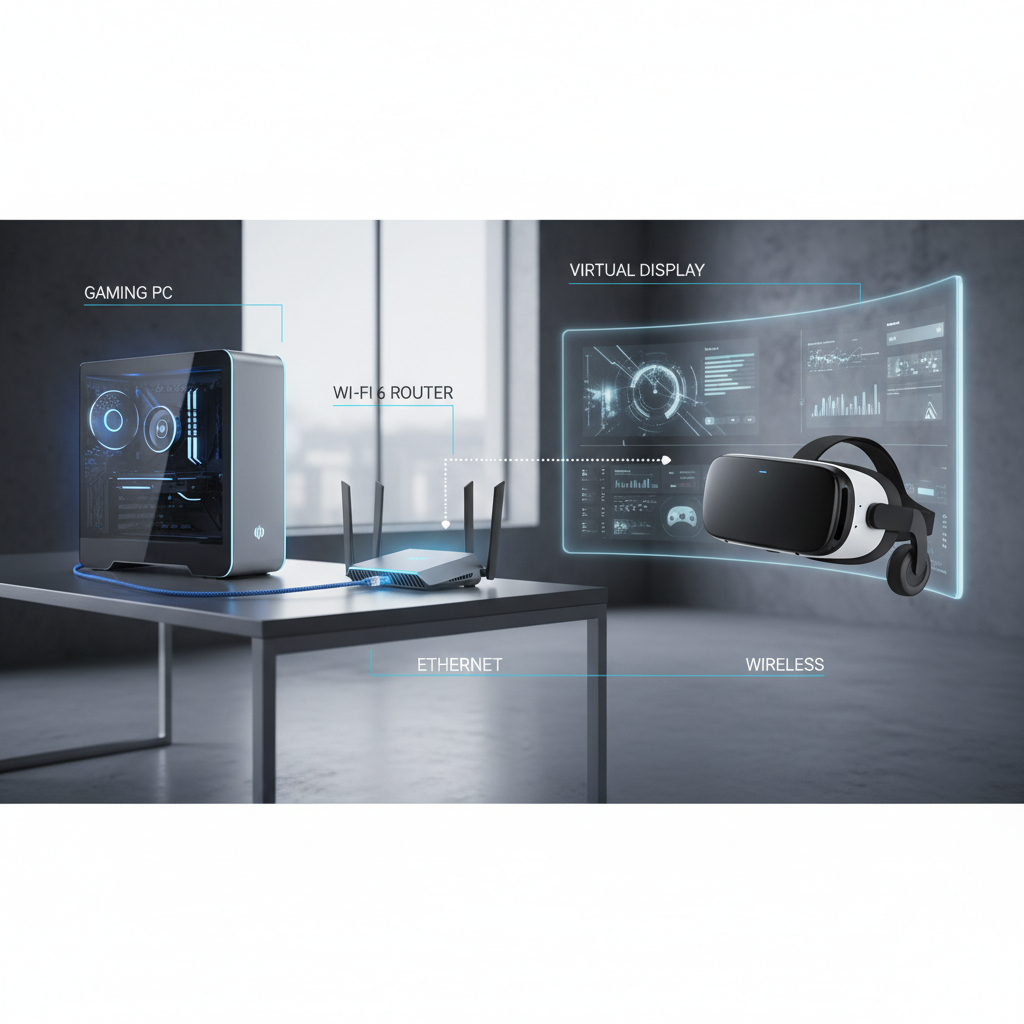
- Virtual Desktop: stream your PC desktop into VR, then watch Netflix in a PC browser.
- Link/Air Link + browser: connect Quest to PC, open Netflix in a supported desktop browser, and watch on a virtual screen.
Practical setup checklist (to avoid lag)
- PC connected to router via Ethernet, if possible.
- Router in the same room, minimal walls between you and Wi‑Fi.
- Close heavy downloads and cloud sync during playback.
- Set streaming quality to a stable level before you chase “max settings.”
According to Meta, Air Link performance depends heavily on network conditions, and they recommend strong Wi‑Fi and a clean network environment for smoother streaming.
Fast self-check: why Netflix looks bad or won’t play in VR
Before you reinstall apps for an hour, run this quick check. Most issues are repeat offenders.
- Playback blocked or black screen: commonly DRM/browser limitation inside the headset.
- Blurry picture: headset resolution limits, low bitrate due to Wi‑Fi, or a mirrored window not set to full quality.
- Audio not in headset: output device still set to TV/speakers on PC.
- Stutters every few seconds: congested Wi‑Fi, router too far, or PC encoder overloaded.
- Login loops: cookies blocked, private browsing quirks, or time/date mismatch on device.
Troubleshooting that actually saves time
Here are fixes that usually move the needle, without guessing.
If the video won’t play (DRM issues)
- Try a different headset browser, if your platform offers alternatives.
- If you have a PC, switch to the PC streaming method and use a mainstream desktop browser that Netflix supports.
- Update headset OS and browser app, then reboot, boring but it often matters.
If quality is disappointing
- Prefer PC streaming over standalone browser if you want a sharper image.
- Check Wi‑Fi band, many homes still connect headsets to crowded 2.4 GHz by accident.
- In Virtual Desktop or similar apps, choose a stable bitrate rather than pushing extremes.
If audio routes wrong
- On Windows, set the headset (or streaming app audio device) as the default output.
- Disable “exclusive mode” audio only if you see conflicts, it can be app-dependent.
According to Microsoft Support, Windows sound output can be changed per-app and system-wide, and mismatched output devices are a common cause of “no sound” situations.
Comfort and safety tips for long VR binge sessions
Watching a full movie in VR can feel great, until it doesn’t. Some people experience eyestrain or motion discomfort, and it is not always predictable. If you feel unwell, pausing and taking a break tends to be the smart move, and persistent symptoms may warrant checking with a healthcare professional.
- Fit matters: adjust straps so the headset feels stable without pressure points.
- Keep a fan or airflow: heat buildup is a quiet comfort killer.
- Use a seated boundary: reduces accidental bumps and helps relaxation.
- Take breaks: especially if your eyes feel dry or your neck starts to complain.
Key takeaways (so you can pick and start)
- If you want simple, try the headset browser first, it is the quickest setup.
- If you want the best picture, PC streaming often wins, assuming your Wi‑Fi is solid.
- If Netflix won’t play, it is often DRM support, not your subscription.
- Comfort is part of the setup, small adjustments change the whole experience.
Conclusion: the easiest path for most people
If you are deciding right now, start with the headset browser, and if playback or quality disappoints, move to PC streaming with Virtual Desktop or Link. That two-step approach covers most real-world setups without turning this into a weekend project.
If you want, write down your headset model and whether you have a PC nearby, then follow the matching method above and test one title for five minutes, it is the fastest way to confirm you are on the right track.