
how to fix mouse not working in game menus usually comes down to one of four things: the game is not capturing mouse input correctly, an overlay is intercepting clicks, Windows is feeding the game the “wrong” input mode, or the mouse driver/polling settings are clashing with the game’s UI.
If the cursor moves on your desktop but stops responding inside menus, it’s extra frustrating because it feels like “the game is fine” yet you can’t start a match, change settings, or even quit cleanly. The good news is that menu-input problems are often fixable without reinstalling the whole game.
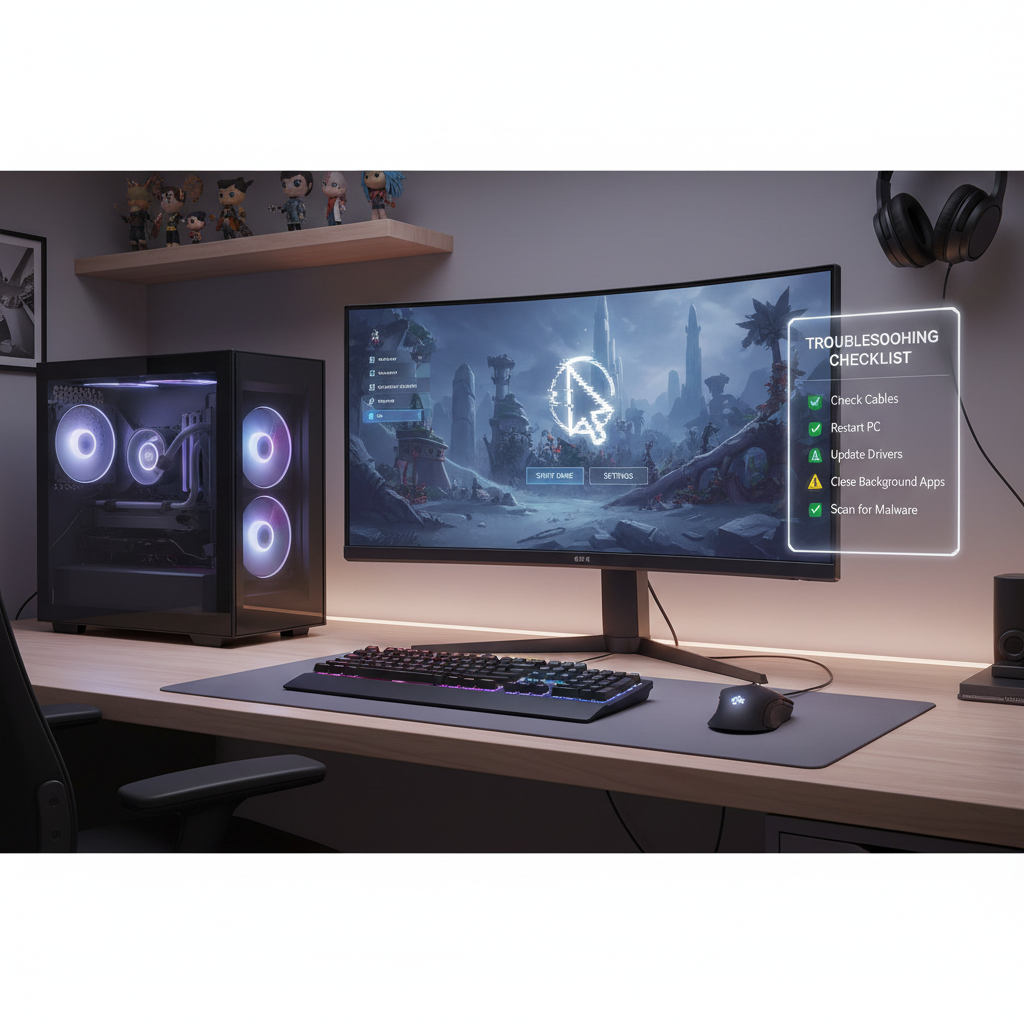
Below is a practical path: quick checks first, then deeper fixes if needed. I’ll also call out the common traps, like “I turned on Fullscreen and it got worse” or “Steam Overlay breaks clicks only in menus.”
Fast triage: confirm what “not working” means
Before changing ten settings, isolate the symptom. Menu issues look similar but behave differently under the hood.
- Cursor moves but clicks don’t register: often an overlay, focus problem, or UI scale issue.
- Cursor doesn’t appear at all: the game may be in controller-only mode, raw input mode, or a capture bug.
- Mouse works in gameplay but not in menus: usually menu layer conflict, input mode switching, or resolution scaling.
- Only right/left click fails: mouse software bindings, macro layers, or Windows click settings.
Key takeaway: don’t start with a reinstall. Start by confirming focus, overlays, and display mode, those fix a big share of menu-only mouse failures.
Most common causes (and what they look like in real life)
These are the patterns that show up repeatedly across Steam games, Epic titles, and older DX9/DX11 games running on modern Windows.
Overlays intercepting input
Steam Overlay, Discord, GeForce Experience, Xbox Game Bar, and “FPS counter” tools can sit between your mouse and the game. Sometimes they only break menu clicks because menus use a different UI framework than gameplay.
Window focus and multi-monitor quirks
If the game starts on one monitor but Windows keeps focus on another app, the cursor can “exist” but clicks land elsewhere. Borderless window mode can also let the pointer drift to the second display in menus.
Fullscreen optimization and capture behavior
Windows Fullscreen Optimizations can help performance, but a few games react badly and fail to capture mouse input in UI screens. According to Microsoft, Fullscreen Optimizations change how exclusive fullscreen behaves to improve performance and compatibility, which is helpful in many cases but can cause edge-case input issues.
Driver, polling rate, and mouse software
High polling rates (like 1000–8000 Hz) and vendor utilities (Logitech G HUB, Razer Synapse, Corsair iCUE) can expose quirks in older games. It’s not that high polling is “bad,” it’s that some menu systems can’t keep up cleanly.
Incorrect in-game input mode
Some games lock menus to “controller navigation” after detecting a gamepad. A drifting analog stick can keep stealing UI focus so the mouse feels dead.
Quick fixes (try in this order, 10–15 minutes total)
These steps are safe, reversible, and typically give you a quick win.
- Alt+Tab out and back in, then click once inside the game window to force focus.
- Unplug controllers (including Bluetooth), especially if a stick drift exists. If you need the controller, disable Steam Input temporarily for that title.
- Toggle display mode: switch between Fullscreen, Borderless, and Windowed, then restart the game once.
- Disable overlays one by one (Steam Overlay, Discord Overlay, GeForce overlay, Xbox Game Bar). Don’t change five at once or you won’t know the culprit.
- Lower mouse polling rate in your mouse software to 500 Hz or 250 Hz as a test.
- Reset in-game settings if the title supports it, especially UI scale and resolution.
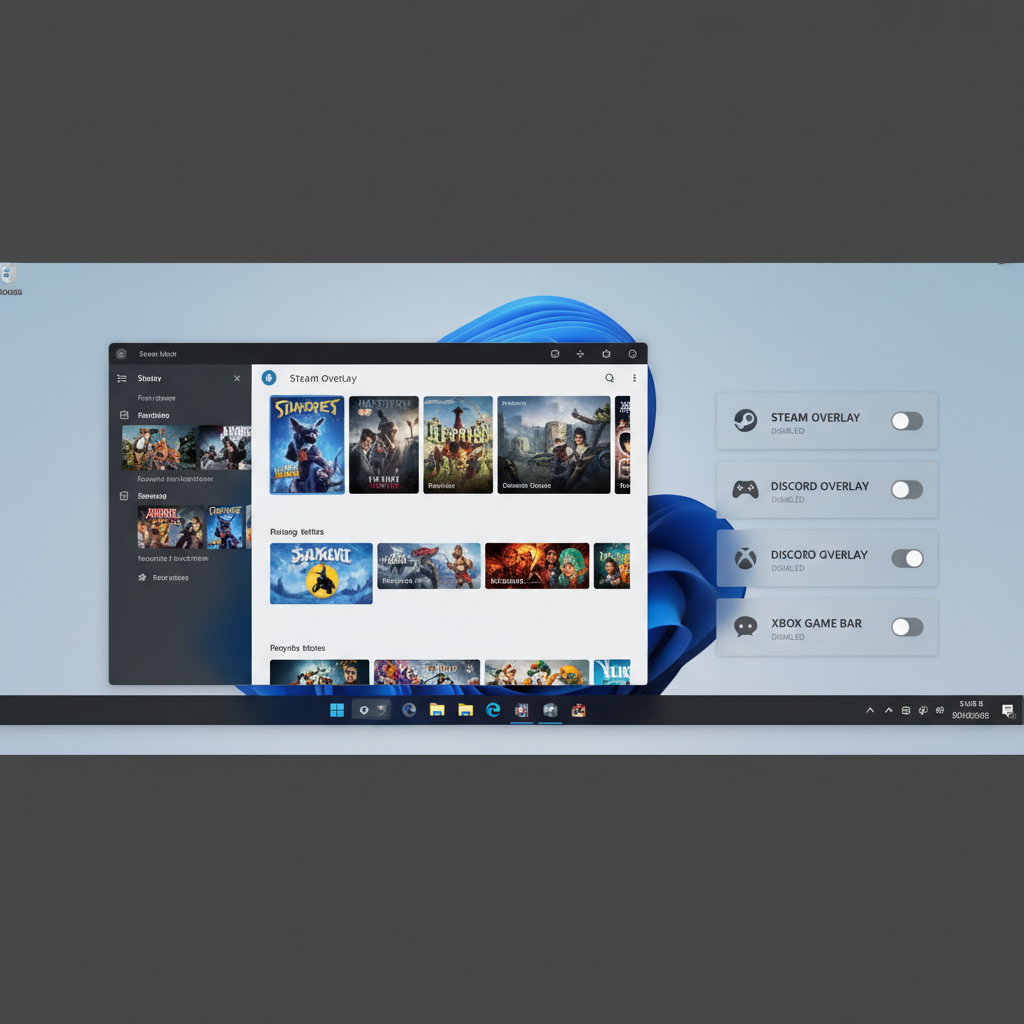
If you only remember one thing: when you’re searching how to fix mouse not working in game menus, overlays + focus + display mode solve more cases than driver reinstalls.
Deeper Windows fixes (when quick fixes don’t stick)
If the problem returns every launch, or affects multiple games, move to OS-level troubleshooting.
Run as Administrator (and keep it consistent)
If the launcher runs without admin rights but the game runs with admin rights, overlays and input hooks can behave inconsistently. Set the same privilege level for the game and launcher, then test.
Disable Fullscreen Optimizations for that game
- Right-click the game EXE → Properties → Compatibility
- Check Disable fullscreen optimizations
- Apply, then relaunch
Check DPI scaling and high-resolution UI issues
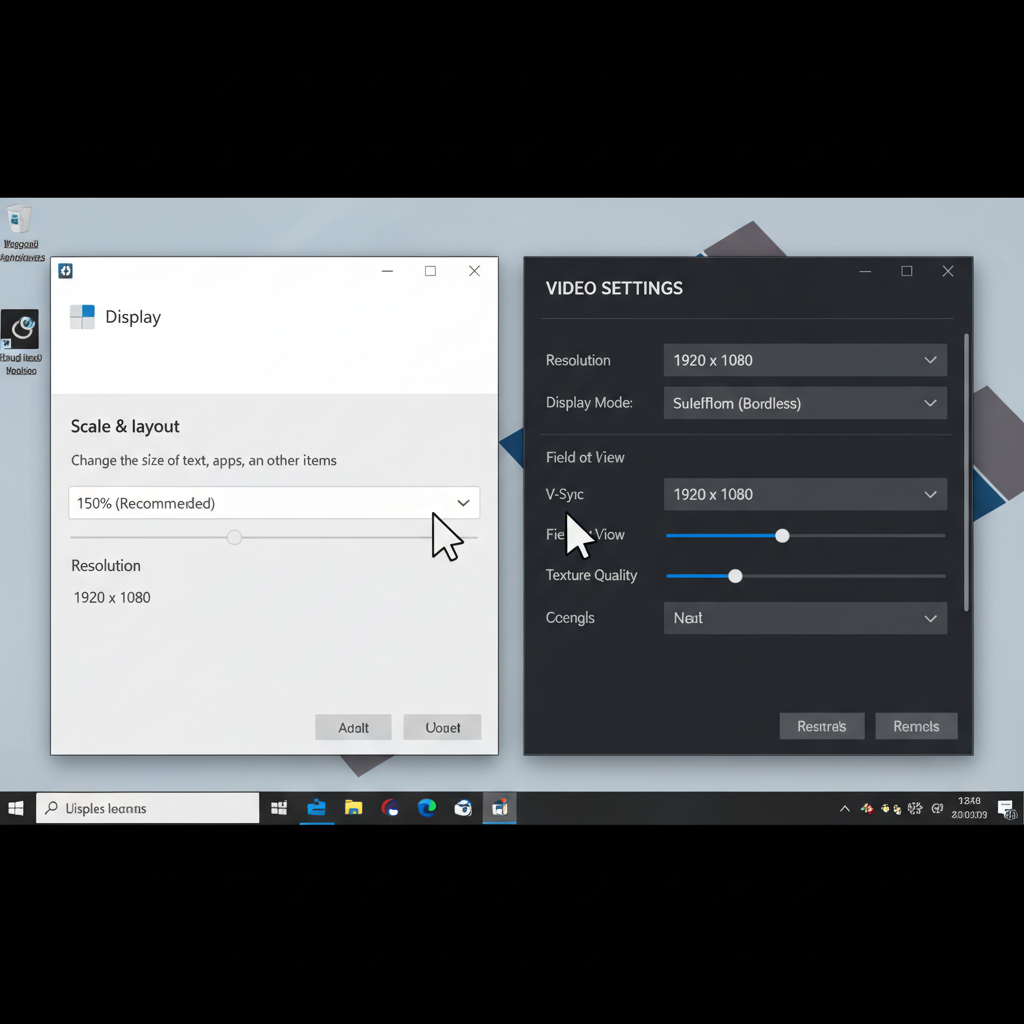
On 4K monitors or high Windows scaling (125%–200%), some games mis-map click coordinates in menus, so your clicks land “somewhere else.” Try setting Windows scaling to 100% temporarily, or override DPI behavior for the game EXE.
Update GPU + mouse drivers (but avoid random driver “cleaners”)
Use official sources. According to NVIDIA and AMD support guidance, keeping graphics drivers current can resolve compatibility issues in games, including UI rendering and input interaction, though it’s not guaranteed for every title.
- Update GPU driver (NVIDIA App/GeForce Experience or AMD Software)
- Update mouse driver/firmware through vendor utility if applicable
- Reboot once after updates
Test a clean boot scenario
If you suspect a background app intercepts clicks, try a minimal startup (temporarily). According to Microsoft Support, clean boot helps identify whether a background service or startup item causes conflicts. If menus start working, re-enable apps in batches until you find the conflict.
Game-specific settings that commonly break menu input
Even when Windows is fine, one title can still behave oddly. These are the settings that tend to matter.
- Raw Input: toggle on/off, then restart. Some games implement raw input better than others.
- Exclusive Fullscreen: if available, try true exclusive fullscreen rather than borderless.
- UI Scale / Safe Mode: set UI scale back to default, or launch in safe mode if offered.
- Steam Input / Controller Profiles: disable for the game to prevent UI focus stealing.
- In-game overlay setting: a few games include their own overlay (FPS, performance graphs) that can intercept clicks.
For stubborn titles, verify game files through your platform (Steam/Epic). It’s not magic, but it fixes corrupted UI configs more often than people expect.
Diagnosis table: symptom → likely cause → fix
Use this as a quick map instead of guessing.
| Symptom in menus | Most likely cause | Try this first |
|---|---|---|
| Cursor moves, clicks do nothing | Overlay intercepting mouse | Disable Steam/Discord/Xbox overlays |
| Cursor missing entirely | Controller mode or capture bug | Unplug controller, toggle windowed mode |
| Clicks register “offset” from cursor | DPI scaling / resolution mismatch | Set Windows scaling to 100%, reset resolution |
| Only one game has the issue | Game config/UI setting conflict | Reset settings, verify files, safe mode |
| Problem appears after driver update | Compatibility regression | Disable fullscreen optimizations, try older driver |
| Menus lag, mouse feels delayed | High polling rate / background hooks | Lower polling to 250–500 Hz, clean boot test |
Common mistakes that waste time
A few habits make this problem drag on longer than it should.
- Changing five variables at once: you fix it, then can’t reproduce what worked, and the issue returns.
- Reinstalling immediately: you lose time and sometimes keep the same conflicting overlay or DPI setting.
- Ignoring controller drift: even a tiny drift can constantly “navigate” the menu, making mouse clicks feel ignored.
- Assuming it’s hardware failure: if the mouse works in Windows, hardware is possible but not the first guess.
Key takeaway: be systematic. One change, one test, quick notes, and you’ll get to the cause faster.
When to seek extra help (and what info to bring)
If you’ve tried the overlay/focus/display steps and the issue persists across multiple games, it may be a deeper input-hook conflict, a Windows profile problem, or (less often) failing USB hardware. At that point, contacting the game’s support or Microsoft support forums can make sense.
Bring specifics so you don’t repeat generic advice: Windows version, GPU model/driver version, whether it happens in Fullscreen vs Borderless, active overlays, mouse model and polling rate, and whether a controller is connected.
If you suspect a USB port or hub issue, testing a different port directly on the PC can help. If there’s any sign of device instability beyond gaming, consider asking a qualified technician, especially on desktops with front-panel USB wiring problems.
Conclusion: a practical checklist you can run anytime
Most menu-only mouse failures are about input capture, focus, and overlays, not a “broken mouse.” Start with Alt+Tab focus, disable overlays, and switch display modes, then work outward to DPI scaling, fullscreen optimizations, and driver/polling tweaks.
- Do now: disable overlays and test Windowed mode once.
- If it still fails: check DPI scaling and unplug controllers, then retry.
If you’re still stuck after that, how to fix mouse not working in game menus becomes a process of identifying the one background tool or setting that keeps intercepting clicks, and the table above should keep you from guessing in circles.
FAQ
Why does my mouse work on desktop but not in game menus?
Many cases involve the game not capturing focus correctly or an overlay grabbing input. Desktop input is fine, but the game’s UI layer never receives the click events.
How do I fix mouse not working in game menus on Steam?
Start by disabling Steam Overlay for that specific game, then relaunch. If a controller is connected, also try disabling Steam Input for the title to prevent UI focus conflicts.
Can Discord overlay break menu clicks even if I don’t see it?
Yes, it can. Some overlays hook into the game even when the overlay UI is not visible, and menu screens are where it shows up first.
Does high mouse polling rate cause menu issues?
It can in some games, especially older ones or titles with heavy UI scripting. Dropping to 500 Hz or 250 Hz is a clean test that’s easy to reverse.
Why are my clicks “offset” from the cursor in menus?
This often points to DPI scaling or resolution mismatch. High Windows scaling on a 4K screen is a frequent trigger, so testing at 100% scaling helps confirm it.
Should I update or roll back my GPU driver?
If the issue started right after a driver update, a rollback can be worth trying. If your driver is very old, updating might help. Either way, change one variable and retest.
Is reinstalling the game worth it for menu mouse bugs?
Sometimes, but it’s rarely the first move. Verifying files and resetting settings usually costs less time and can fix corrupted configs without a full reinstall.
If you’re trying to fix this quickly across multiple games, it helps to keep a small “known good” baseline: overlays off, a moderate polling rate, and a consistent display mode. If you need a more hands-off path, consider saving a Windows gaming profile that disables overlays and startup hooks during play, then you can flip it on only when you game.