
how to setup meta quest 3 is mostly about getting three things right early: a stable Wi‑Fi connection, a clean headset fit, and the Meta Quest app pairing that unlocks updates and your library.
If you’re upgrading from a Quest 2 or you bought your first headset, the setup flow can feel "simple" until it isn’t, pairing fails once, Wi‑Fi drops mid-update, or your boundary keeps drifting. A little prep saves a lot of reboots.
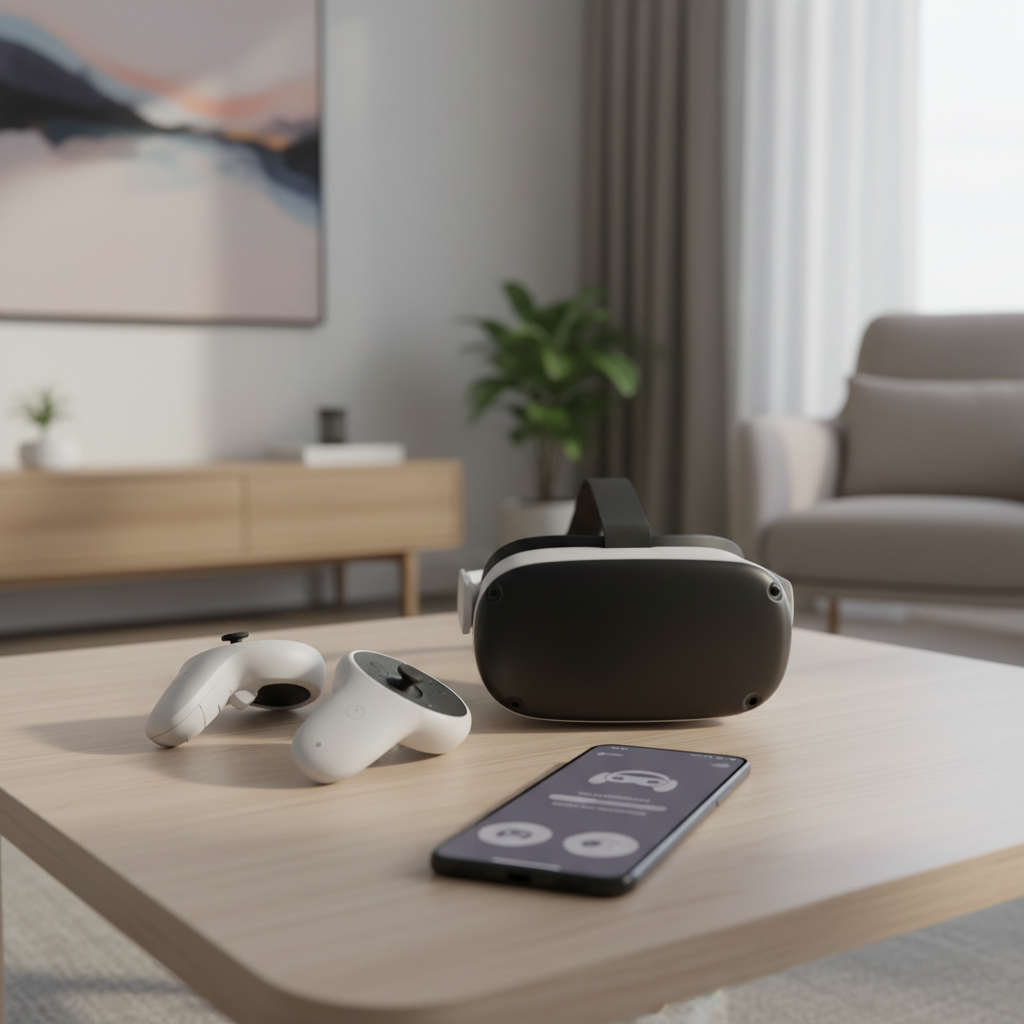
Below is a practical, real-world setup guide: what to do before you power on, what settings matter, how to avoid the usual snags, and what to try if you get stuck. You’ll also get a quick checklist and a troubleshooting table you can skim.
Before you start: what to have ready (this avoids most setup stalls)
Most “setup problems” come from missing one of these basics. If you handle them up front, how to setup meta quest 3 becomes a 15–30 minute task for many people.
- Smartphone with the Meta Quest app (iOS or Android), Bluetooth on, location permissions allowed if prompted
- Wi‑Fi name and password you can type accurately inside the headset
- Charging cable + power, ideally start above 50% battery
- Clear play area, even if you plan to use seated mode
- Your Meta account login (email/password or whichever method you use)
According to Meta, you set up and manage key device features through the Meta Quest app, including pairing and account-related steps. If your phone can’t run the app smoothly, pairing issues tend to follow.
Step-by-step: initial power on, pairing, Wi‑Fi, and updates
Here’s the clean sequence that usually works best. If you do things out of order, it still can work, it just fails more often.
1) Charge and power on
Plug in for a bit if you’re under 30%. Press and hold the power button until the headset boots. Put it on, then follow the on-screen prompts for language and basic instructions.
2) Pair the headset with the Meta Quest app
Open the Meta Quest app, sign in, and choose to add/pair a headset. Keep your phone close, Bluetooth enabled. If you’re wondering how to setup meta quest 3 without a phone, in practice you still want the app for smooth pairing and firmware updates.
3) Connect to Wi‑Fi (pick stability over speed)
Use a reliable network, ideally 5 GHz if your router offers both bands and the signal is strong. A weak 5 GHz signal can be worse than solid 2.4 GHz for downloads.
- Avoid guest networks that block device-to-device communication
- Avoid captive portals (hotel Wi‑Fi sign-in pages), they often break setup
- Stay close to the router until updates finish
4) Let updates finish (don’t rush this part)
The headset may download system updates right away. Let it complete, even if it feels slow. Interruptions here are a common reason people repeat setup steps and think something “bricked.”
Fit, comfort, and vision setup (it matters more than people expect)
Comfort isn’t a luxury, it directly affects tracking, clarity, and motion comfort. If the headset sits too high/low, you’ll chase blurry text and feel eye strain faster.
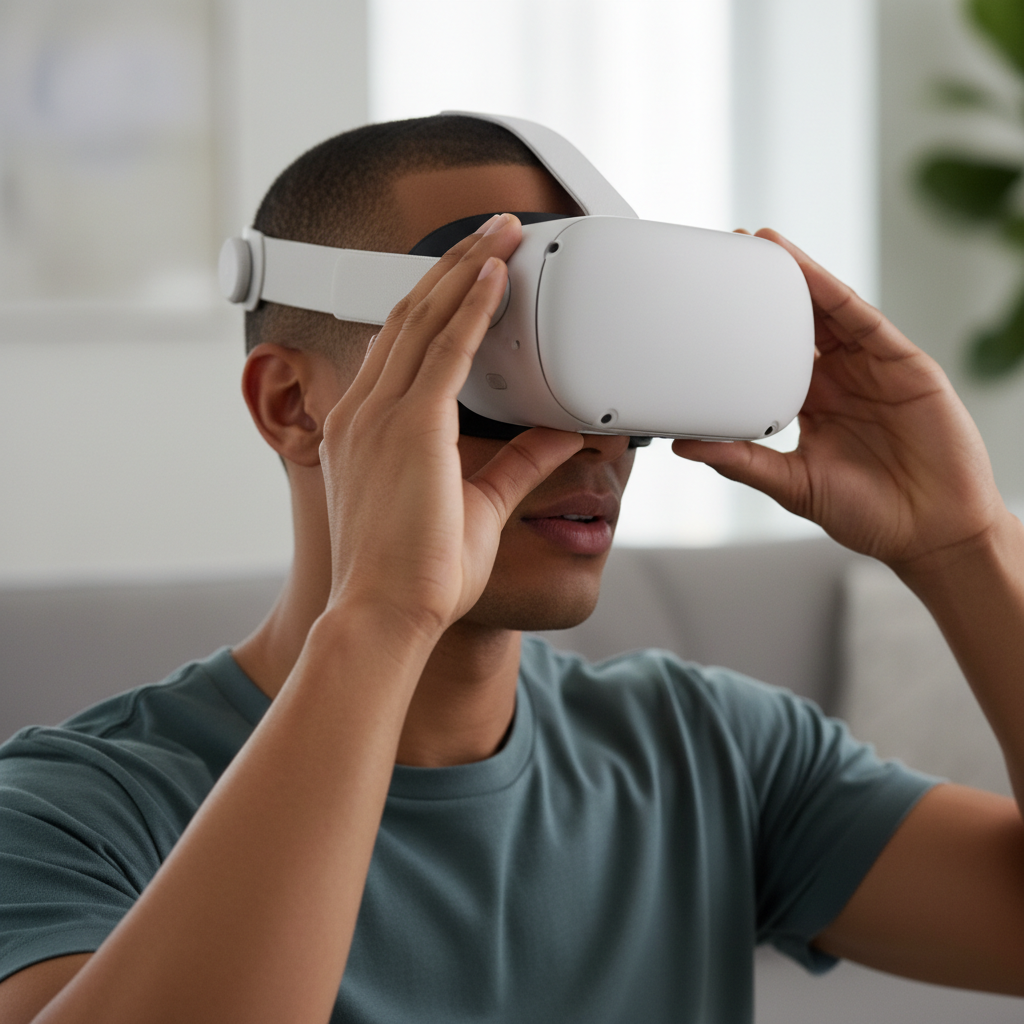
Quick fit routine that works for most users:
- Loosen first, place the headset on your face, then tighten gradually
- Center the lenses so text looks sharp without you “searching” with your eyes
- Top strap matters if your forehead feels pressure, shift weight upward
- Glasses wearers: consider the glasses spacer if included, and avoid forcing frames against the facial interface
If you feel nausea or headaches, take a break. Motion discomfort varies a lot by person; if symptoms persist, it’s sensible to slow down, adjust comfort settings, and consider asking a healthcare professional for guidance.
Room setup: boundary, lighting, and controller tracking
Many people blame the headset when the real issue is the room. Lighting and reflective surfaces can affect tracking quality.
- Lighting: bright, even light works best, avoid dark rooms and harsh direct sunlight
- Reflective surfaces: mirrors and glossy TVs sometimes confuse tracking, cover or angle them away
- Boundary: draw a realistic boundary, not a “perfect rectangle” that clips furniture corners
- Controller basics: ensure batteries are seated well, and keep hands within the headset camera view
According to the U.S. Consumer Product Safety Commission (CPSC), you should keep clear space when using consumer products that involve movement to reduce injury risk. In VR, that translates to an uncluttered area and a boundary you actually respect.
Quick self-check: which setup path are you on?
If you’re unsure how to setup meta quest 3 for your situation, this mini checklist helps you choose what to focus on next.
- New to Meta/VR: prioritize pairing, updates, comfort settings, and beginner movement options
- Upgrading from Quest 2: confirm you’re on the right Meta account, then restore apps and recheck boundary behavior
- Setting up for a kid/teen: make sure account and supervision settings match your household needs
- Travel / dorm Wi‑Fi: expect Wi‑Fi sign-in restrictions, plan for a hotspot or different network during setup
If you’re stuck at a specific step, jump to the troubleshooting table below before you factory reset. Resets solve some problems, but they also waste time when the fix is a permission toggle.
Troubleshooting table: common setup issues and what usually fixes them
These are the issues that show up again and again, especially in the first hour.
| Problem | What you notice | What to try (in order) |
|---|---|---|
| Phone won’t pair | App can’t find headset, or pairing code fails | Toggle Bluetooth, restart phone app, keep phone close, approve permissions, reboot headset |
| Wi‑Fi connects but updates stall | Download stuck, repeated “checking for updates” | Move closer to router, switch bands (5 GHz ↔ 2.4 GHz), reboot router, try different network |
| Controllers not tracking | Pointer jumps, hands “float,” buttons respond late | Replace batteries, re-pair controllers, improve lighting, remove reflective distractions |
| Boundary drifts | Floor height off, guardian shifts after a few minutes | Recreate boundary, improve lighting, clean headset cameras carefully, avoid mirrors |
| Blurry image | Text never gets sharp | Adjust fit and lens alignment, clean lenses with microfiber cloth, check glasses spacing |
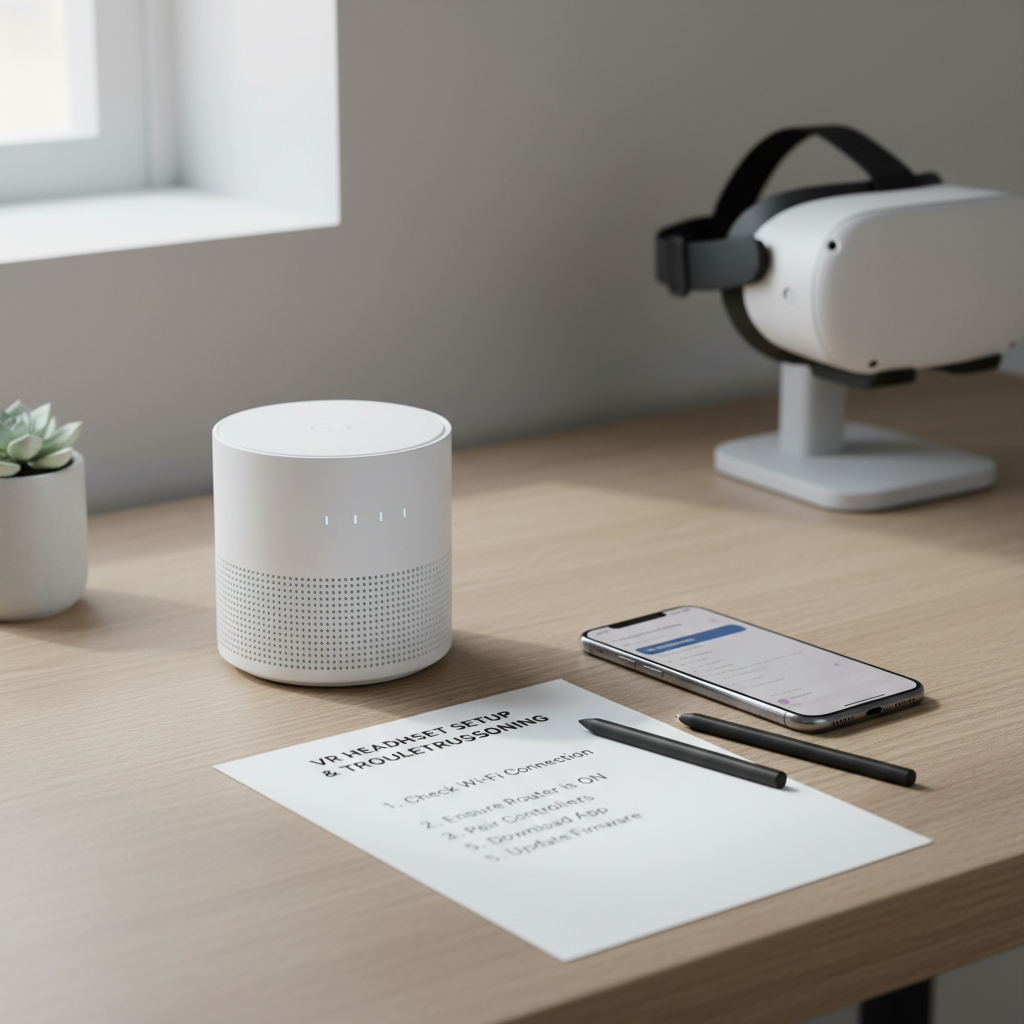
Practical setup tips people skip (and then regret)
Once you get past the basic wizard, these small choices make daily use smoother.
- Enable system updates and leave the headset on Wi‑Fi overnight occasionally, updates often install when idle
- Set a comfortable boundary type for your space, don’t force room-scale if you only have standing room
- Turn on comfort options in apps when available, especially snap turning or vignette if you feel motion discomfort
- Use a dedicated play area if possible, repeated boundary redraws get old fast
One more thing: clean lenses with a dry microfiber cloth only, liquids and paper towels can scratch coatings. If your headset needs deeper cleaning, follow the manufacturer’s care guidance rather than improvising.
When to escalate: support, warranty, or a reset
Sometimes you do everything right and setup still won’t finish. This is when escalation makes sense.
- Contact support if the headset can’t complete updates across multiple networks, or if pairing fails on two different phones
- Consider a factory reset when the headset boots into a loop, but only after you try a reboot and network change
- Check return/warranty options if tracking is unstable in multiple rooms with good lighting, it can indicate hardware issues
According to Meta Support, factory reset instructions and device troubleshooting steps vary by model and software version, so it’s worth following the official flow instead of random button combos from old posts.
Conclusion: a setup that stays stable after day one
How to setup meta quest 3 comes down to a predictable recipe: pair through the app, use stable Wi‑Fi for updates, get the fit right, then dial in boundary and lighting so tracking behaves. If something breaks, troubleshoot in a calm order before you nuke everything with a reset.
If you want one action to take right now, finish updates on a strong network, then redo your boundary once in good lighting, that single step fixes a surprising number of “weird” issues.