
how to fix vr tracking issues usually comes down to a few repeat offenders: lighting, occlusion, dirty cameras or base stations, wireless interference, or software settings that quietly changed after an update. The good news is you can typically narrow it down in 10–15 minutes if you test in the right order, instead of randomly reinstalling everything.
Tracking problems feel extra frustrating because they don’t fail politely. One session is fine, the next you get controller drift, hands snapping to weird angles, or the headset “rubber-bands” when you turn. VR depends on clean sensor data and stable timing, so small environment or USB hiccups can show up as big motion problems.
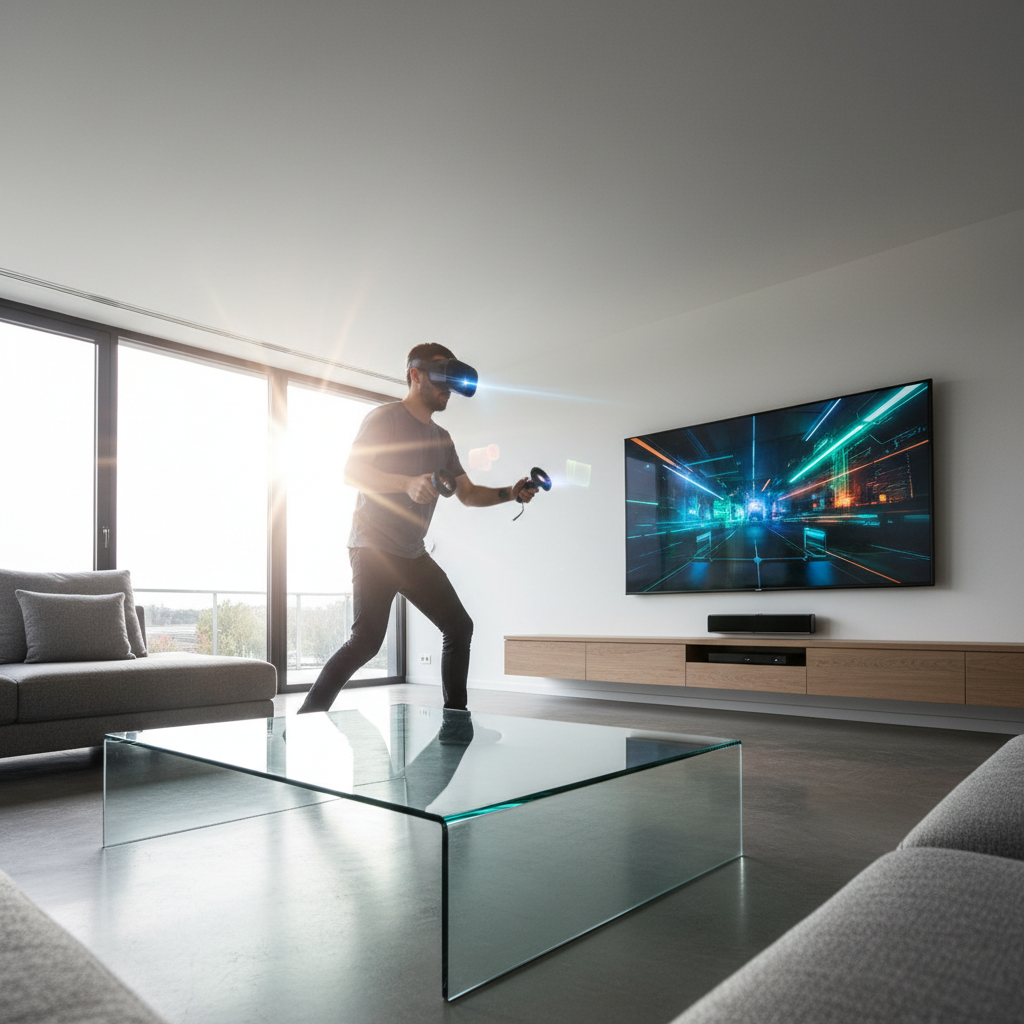
This guide helps you identify what kind of tracking issue you have, then fix it by platform: Meta Quest inside-out tracking, SteamVR base stations, and Windows Mixed Reality. You’ll also get a quick table of symptoms and likely causes, plus a “stop doing this” section that saves time.
What “VR tracking issues” actually look like (and why it matters)
Before you change anything, name the symptom. Tracking failures often get lumped together, but the fix depends on whether you’re dealing with environment sensing, controller pose estimation, or PC connectivity.
- Headset drift: your view slowly slides or rotates without you moving.
- Jitter/shake: small rapid vibration in headset or controller position.
- Snap/teleport: controllers jump a few inches, or your head “pops” to a different spot.
- Lost tracking warnings: the system pauses or asks you to redraw boundary/room setup.
- One controller worse than the other: often occlusion, battery, or LED/IR visibility issues.
According to Meta (Quest support guidance), tracking quality depends heavily on your environment, especially lighting and visible features for the cameras to lock onto. In practice that means the room matters as much as the headset.
Fast diagnosis: match your symptom to the most likely cause
If you only do one thing, do this section. It prevents the common mistake: spending an hour on drivers when the real issue is a mirrored closet door or a dead controller battery.
| Symptom | Most likely cause | Best first fix |
|---|---|---|
| Headset drift over time | Low features in room, bad lighting, smudged cameras | Improve lighting, clean cameras, add visual texture |
| Controller jitter | Low battery, occlusion, reflective surfaces, RF interference | Fresh batteries/charge, remove reflections, adjust play stance |
| Sudden “lost tracking” | Too bright/dark, sunlight, blocked cameras, guardian confusion | Change lighting, face away from windows, redo boundary |
| SteamVR tracking drops | Base station placement, vibration, sync/visibility issues | Reposition base stations, remove reflective items, update firmware |
| PC VR stutter looks like tracking | USB bandwidth/power, cable issues, CPU/GPU frame drops | Try different USB port, disable USB power saving, check performance |
Key takeaway: “Tracking” can fail because the headset can’t see enough, or because the PC can’t keep up. Those look similar in-headset, but you troubleshoot them differently.
Fix the environment first (works for most headsets)
Most how to fix vr tracking issues searches end up here, because environment problems are both common and easy to miss. Inside-out systems (Quest, WMR) rely on cameras; lighthouse systems (SteamVR) rely on sensors seeing base station sweeps. Either way, visibility matters.
Lighting: aim for stable, even brightness
- Avoid direct sunlight on walls/floor in the play area. Sun patches move and blow out camera exposure.
- Don’t play in near-darkness unless your device officially supports IR illumination; many setups get noisy and jittery when the cameras crank gain.
- Prefer diffuse room light over a single harsh lamp behind you.
Remove “tracking poison” surfaces
- Mirrors, glass doors, glossy TVs, framed posters can confuse both camera-based and lighthouse tracking.
- If you can’t remove them, cover them temporarily with a sheet or matte fabric.
- For SteamVR, reflective surfaces can bounce IR sweeps and create phantom reads.
Add visual features if your room is too plain
White walls and empty rooms look “featureless” to cameras. A simple rug, a poster, or furniture edges can help the system keep orientation. It sounds silly, but it works a lot of the time.
Clean, reset, and recalibrate (the boring fixes that often win)
This is the part people skip because it feels too basic, then they circle back after nothing else works.
- Clean tracking cameras on inside-out headsets with a microfiber cloth, no harsh cleaners.
- Re-run room setup/guardian/boundary so the headset rebuilds its spatial map.
- Restart headset and controllers, not just the app. Full power cycle clears stuck sensor states.
- Replace controller batteries or fully charge them; low voltage can reduce LED brightness and stability.
According to Valve (SteamVR support guidance), base station tracking needs unobstructed line of sight and stable mounting. If your base station sits on a shelf that vibrates when you walk, you can see jitter that feels “mysterious” until you notice the shelf wobble.
Platform-specific fixes: Quest, SteamVR, and WMR
Once the room and basics are handled, use the path that matches your setup. Mixing advice across platforms is a common way people waste time.
Meta Quest (inside-out tracking)
- Turn off hand tracking temporarily if you only use controllers; some users report fewer odd transitions, depending on app and firmware.
- Check for “Tracking” or “Guardian” prompts and redo boundary in the same lighting you’ll play in.
- If you use Link/Air Link, test standalone first. If standalone is stable but PC VR isn’t, the issue is likely PC/network, not camera tracking.
- Try another play area to confirm it’s not your room.
SteamVR (base stations + Index/Vive trackers)
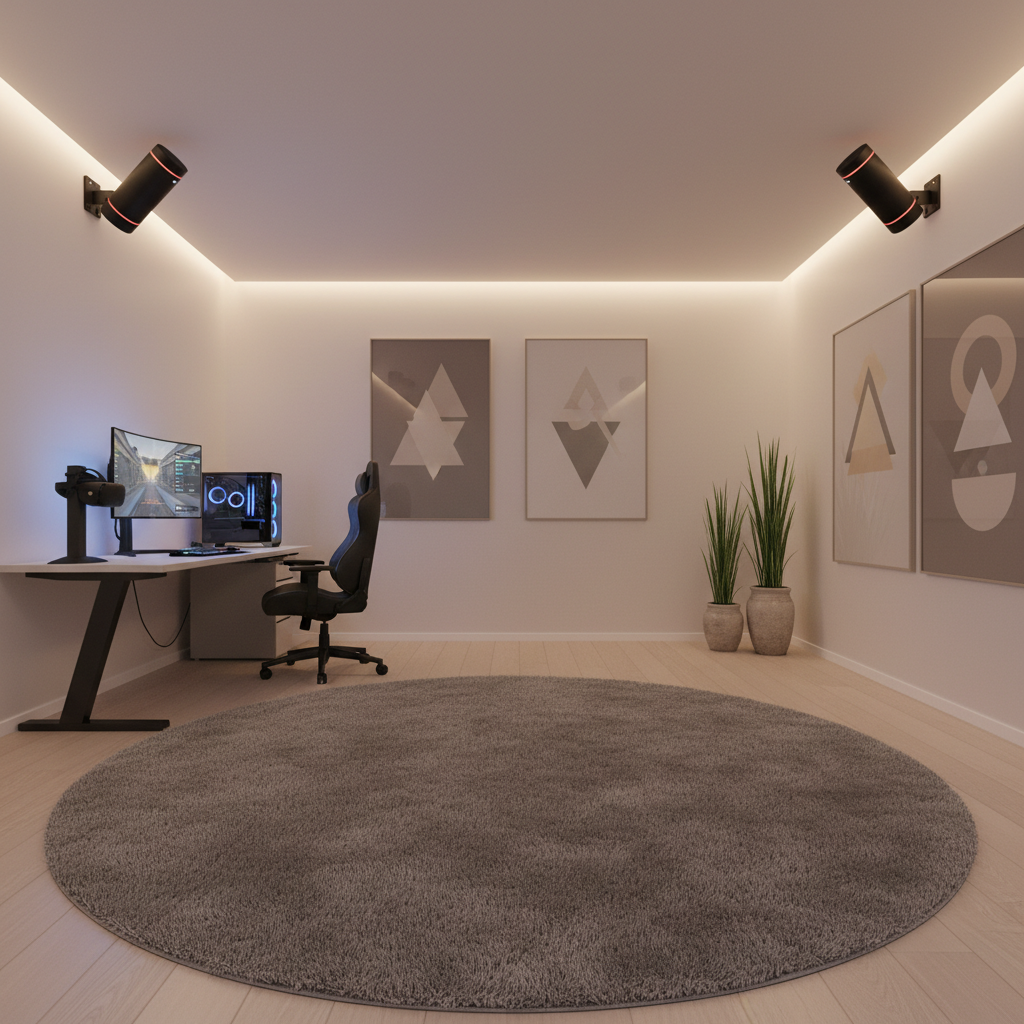
- Reposition base stations: high corners, angled down, with overlap on the play space.
- Update base station firmware in SteamVR.
- Remove or cover reflective objects, especially mirrors and glossy TVs.
- For full-body tracking, ensure trackers aren’t occluded by your body during common poses; “controller behind your back” is a classic dropout moment.
Windows Mixed Reality (WMR)
- Improve room lighting and add features, WMR tends to dislike blank walls.
- Re-run room boundary and ensure the headset cameras are clean.
- Keep Bluetooth/controller pairing stable; if controllers lag while the headset stays stable, pairing/interference is often involved.
When it’s “tracking” but actually PC performance, USB, or wireless
A lot of players describe frame drops as tracking drift because both feel like your head position is unstable. If the view lags behind your head turn, you may be hitting performance limits or transport issues.
Quick checks for PC VR (cable or USB)
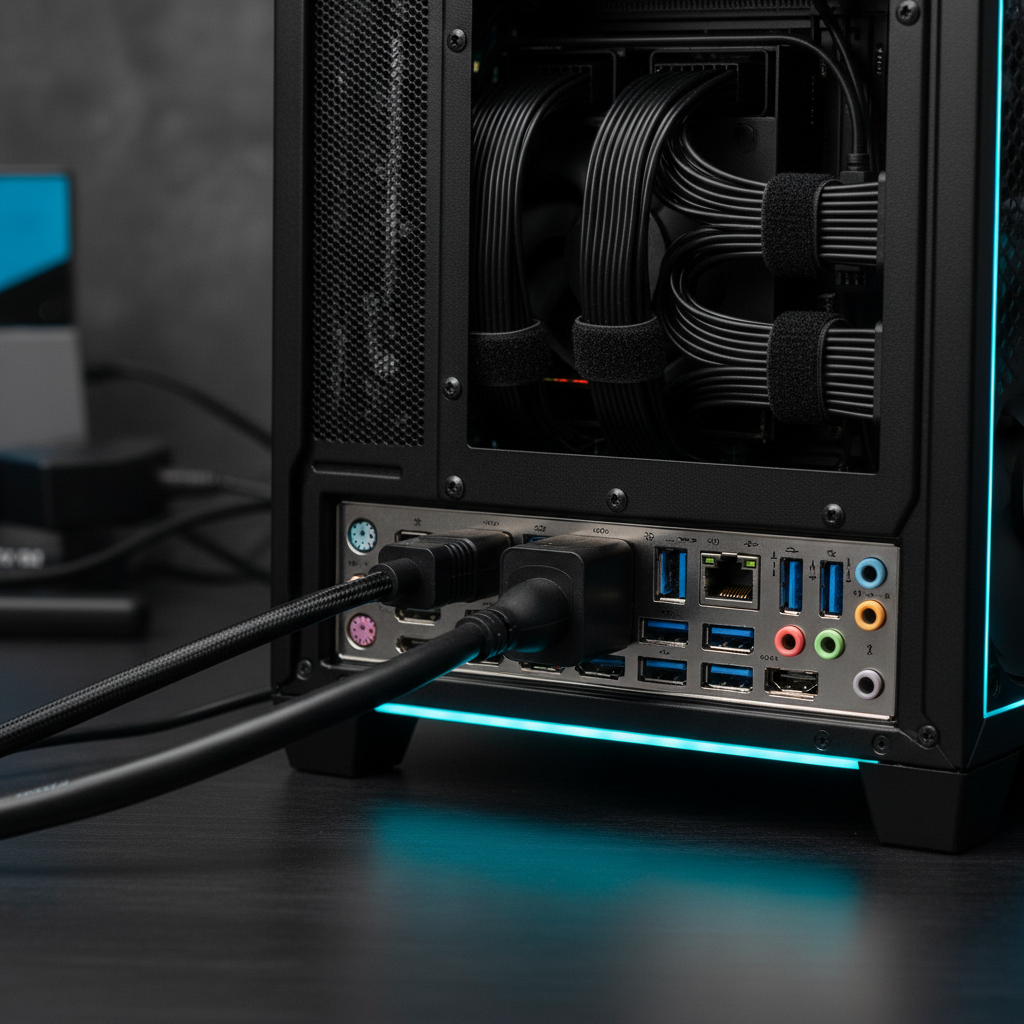
- Try a different USB port (ideally a rear motherboard port). Front-panel hubs can be noisy or underpowered.
- Disable USB selective suspend / power saving in Windows for the ports your headset uses.
- Inspect cables for kinks and loose connectors; intermittent contact can look like random tracking drops.
- Close overlays and background capture tools and retest.
Quick checks for wireless PC VR (Air Link / Steam Link / Virtual Desktop)
- Prefer 5 GHz or Wi-Fi 6/6E on a dedicated router/AP if possible, and keep the play space within strong signal range.
- Reduce bitrate/resolution as a test. If “tracking issues” vanish, it was network latency or decoding load.
- Avoid congested channels; apartment buildings can be rough.
According to Microsoft (Windows support documentation), USB power management and driver stability can affect connected devices. In VR, that instability shows up as stutter, disconnects, or intermittent sensor behavior that feels like tracking going bad.
Common mistakes that keep tracking broken
- Changing five variables at once, then not knowing what helped. Change one thing, test for two minutes, then proceed.
- Ignoring reflective surfaces because they’re “off to the side.” Side reflections still matter when you turn.
- Assuming controller drift means “bad controller.” Often it’s battery level, occlusion, or lighting.
- Reinstalling everything before checking the room. It’s the most time-consuming “maybe.”
When to seek professional help (or consider hardware issues)
If you’ve tried a second room, cleaned sensors, reset boundaries, updated firmware/software, and you still get consistent dropouts, hardware faults become more plausible. Things like damaged camera modules, failing controller LEDs, or unstable ports happen, just not as often as environment problems.
- Tracking fails in multiple locations with different lighting.
- One controller always jitters even after battery swap and re-pairing.
- Base station shows error states, won’t update, or loses sync repeatedly.
- You see visible lens/camera damage or the device recently took a hard hit.
If your symptoms include nausea, headaches, or unusual discomfort, it may be wise to stop and consult a qualified medical professional, since VR motion issues can affect people differently.
Conclusion: a simple order of operations that usually fixes it
how to fix vr tracking issues becomes much less painful when you troubleshoot in a sane order: stabilize the room lighting and remove reflections, clean sensors, reset boundary, then move to platform-specific steps and PC or wireless checks. Most “random” tracking problems turn out to be pretty repeatable once you spot the trigger.
Action steps: pick one symptom from the table, apply the recommended first fix, then test in the same app for a few minutes. If it improves, keep going in that direction; if not, switch categories instead of doubling down on the same guess.
If you need a more hands-off path, consider using your headset maker’s official troubleshooting flow and support tools, especially for firmware, controller pairing, and warranty checks, it’s often quicker than trial-and-error when hardware starts looking suspicious.
FAQ
- Why does my VR tracking get worse at night?
Many rooms get dimmer or rely on one lamp at night, which can increase camera noise or create harsh shadows. Try brighter, more even lighting and avoid point lights aimed at the play area. - How do I know if it’s tracking or frame rate stutter?
If the world “lags” behind your head turn and feels smeary, that’s often performance or transport. If your position jumps or controllers snap, it’s more likely tracking visibility or occlusion. - Do mirrors really break VR tracking?
Often, yes. Mirrors and glossy TVs can confuse camera-based systems and can reflect IR for lighthouse setups. Covering them is a fast test that tells you a lot. - My controllers drift only in one corner of the room, why?
That corner may have worse lighting, more reflections, or occlusion from furniture. For SteamVR, it can also be a line-of-sight gap to one base station. - Can low controller batteries cause jitter?
In many cases, yes. Lower voltage can reduce signal stability, and some controllers behave inconsistently near the end of a charge. Swapping batteries is a cheap diagnostic step. - Should I reset or reinstall software to fix tracking?
It can help after updates or corrupted settings, but it’s rarely the first move. It’s smarter to rule out lighting, reflections, and basic calibration before you go nuclear. - What base station placement works best for SteamVR?
High, opposite corners with overlap on the play space, solid mounting, and minimal reflective surfaces. If a base station can wobble, tracking can wobble with it.