
gpu optimization for nvidia rtx cards usually comes down to three levers you can actually control: stable drivers, sane power/thermal limits, and game or app settings that match how RTX GPUs work.
If you’ve ever chased higher FPS, smoother frametimes, or faster renders and ended up with random crashes or loud fans, you’re not alone. RTX cards have a lot of “automatic” behavior (boost clocks, dynamic voltage, per-app profiles) that can be great, but only when the rest of the system cooperates.
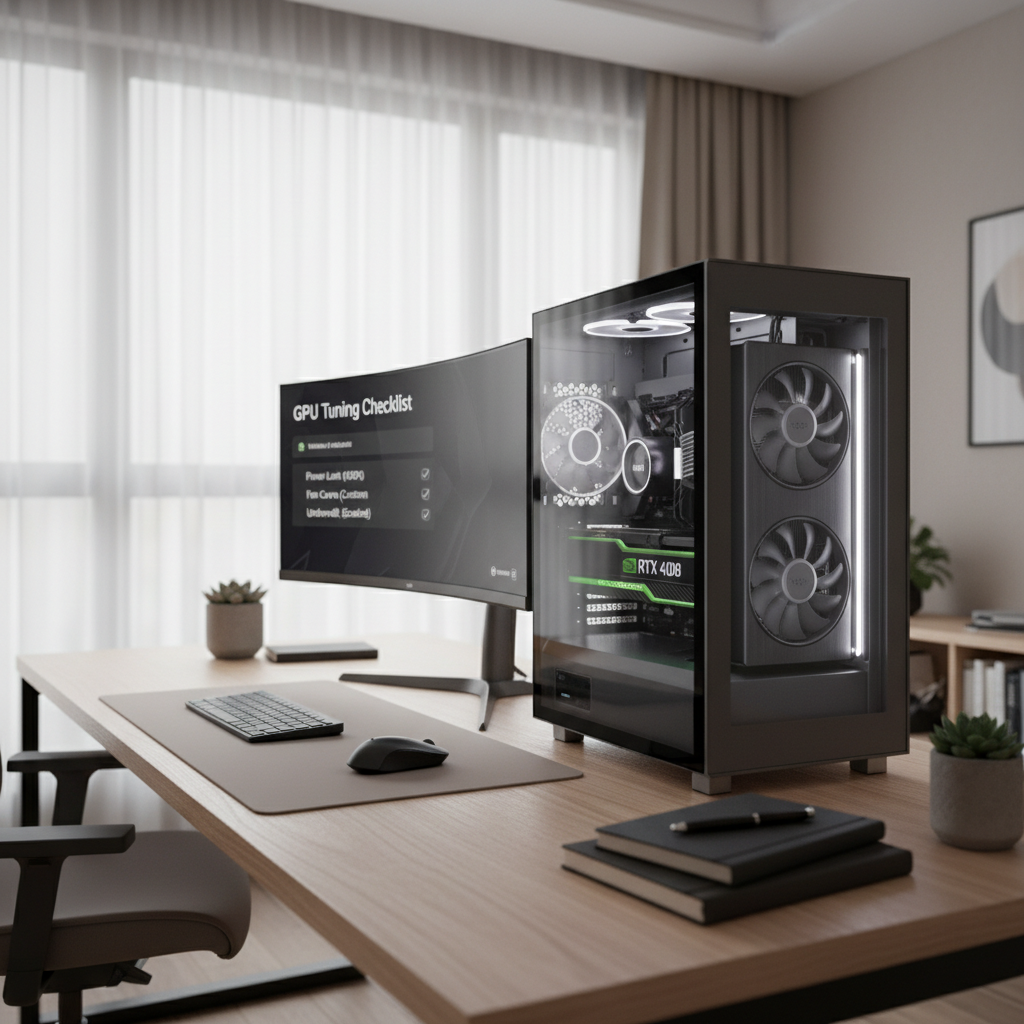
This guide focuses on real-world optimization: what to check first, what changes are low-risk, and where people tend to waste time. You’ll also get a quick self-test to pick the right path, plus a small settings table you can copy.
What “GPU optimization” really means on RTX
On NVIDIA RTX cards, optimization isn’t a single switch. It’s the practice of getting consistent performance for your workload while keeping temperatures, power draw, and driver stability in a healthy range.
- Gamers usually want better 1% lows (less stutter) more than peak FPS.
- Creators usually want predictable render/export times, plus stability under long loads.
- AI/compute users often care about VRAM headroom, CUDA stability, and thermals over hours.
According to NVIDIA (via GeForce driver documentation and app notes), per-game profiles and driver-level features can change behavior significantly, which is why two “identical” rigs can feel different after an update.
Fast self-check: which situation are you in?
Before you start changing sliders, identify the symptom. Different problems look similar on the surface, but respond to different fixes.
Pick the closest match
- High FPS but stutter: frametime spikes, inconsistent 1% lows, often CPU/RAM/streaming or shader compilation related.
- Crashes / black screens: driver conflicts, unstable OC/undervolt, PSU transient issues, or bad cable/adapter seating.
- Runs hot / loud: case airflow limits, dust, conservative fan curve, power limit too high for the cooler.
- Lower-than-expected performance: wrong power plan, old driver branch, Resizable BAR off, game using wrong GPU, background capture overlays.
If you can, log a 10–15 minute session with something like CapFrameX (gaming) or your app’s own render benchmark. You’re not hunting for perfect numbers, just patterns: clock drops, thermal throttling, VRAM full, or GPU not hitting expected utilization.
Baseline first: drivers, firmware, Windows settings
This is the unglamorous part, and it fixes a surprising number of “optimization” complaints. Do this before undervolting or chasing memory clocks.
Driver choices that usually matter
- Game Ready vs Studio: Studio drivers often trade a bit of bleeding-edge support for stability in creative apps. If you mostly create, it’s a reasonable default.
- Clean install: if you’ve hopped across multiple major driver versions, a clean install can reduce weird conflicts. Many users use DDU (Display Driver Uninstaller), but follow official guidance and be careful in Safe Mode.
- Keep chipset drivers current: AMD/Intel chipset packages can affect PCIe power management and scheduling behavior.
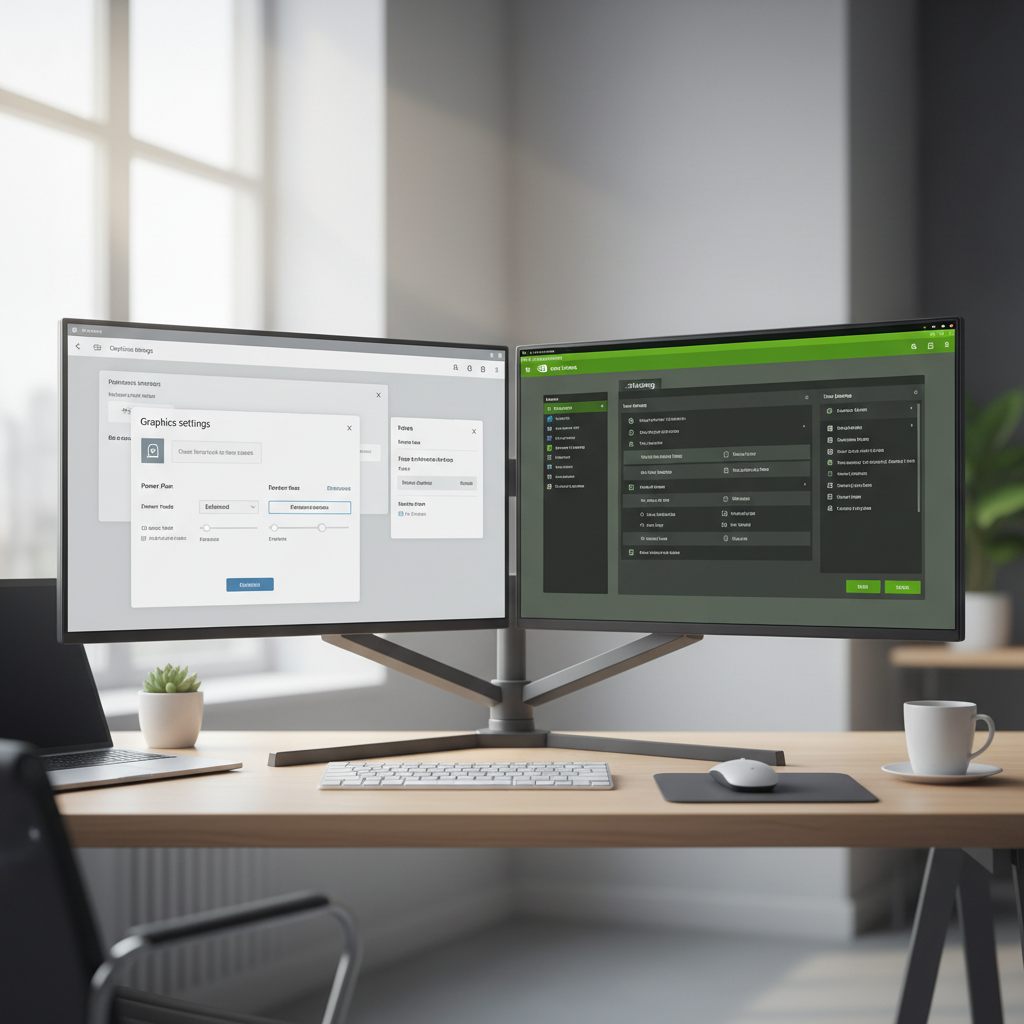
Windows settings worth checking
- Power mode: Balanced is fine for most, but some desktops behave better on “High performance” when chasing frametime consistency.
- Hardware-accelerated GPU scheduling (HAGS): can help some setups, can hurt others. Treat it as a test, not a religion.
- Game Mode: often beneficial for gaming PCs, but if you run heavy background tasks it can create tradeoffs.
According to Microsoft documentation, features like HAGS and Game Mode can change scheduling and resource prioritization, so toggling them is a valid troubleshooting step when stutter appears after updates.
NVIDIA Control Panel: the small tweaks that aren’t snake oil
Most global settings should stay default. The better habit is set per-game or per-app profiles so you don’t accidentally break another title or workflow.
Practical per-app settings to try
- Power management mode: “Normal/Optimal” for general use, “Prefer maximum performance” for a specific game that downclocks too aggressively in menus or during CPU-limited scenes.
- Low Latency Mode: useful in some esports titles, but can reduce throughput in GPU-limited AAA games. Test it, don’t assume.
- Max Frame Rate: capping a few FPS below monitor refresh can reduce heat and frametime spikes, especially with G-SYNC/FreeSync Compatible displays.
If you use the NVIDIA App/GeForce Experience overlays, try disabling overlays for troubleshooting. Overlays can be fine, but they’re common variables when a system feels “off.”
Core tuning: power limit, undervolt, fan curve (the safe order)
For gpu optimization for nvidia rtx cards, the safest tuning sequence is: stabilize thermals first, then control power, then try undervolting. Jumping straight to aggressive undervolts tends to create “it works until it doesn’t” instability.
Recommended order of operations
- Set a reasonable fan curve: aim for stable temps under load, not silence at all costs. Many cards behave best when kept under the point where they start frequent boost oscillations.
- Adjust power limit: lowering power 5–15% can reduce heat and noise a lot, with modest performance loss in many games. Some workloads barely notice.
- Undervolt: target the same performance at lower voltage, often improving efficiency and sustained boost. Go in small steps and stress test.
A simple starting table (typical desktop scenarios)
| Goal | Power Limit | Fan Curve | Undervolt Approach | Test |
|---|---|---|---|---|
| Quieter gaming | -5% to -15% | More aggressive past 70°C | Lock a moderate boost clock at lower voltage | 30–60 min in your main game |
| Max stability | Stock | Stock or slightly higher | Very small steps only, or skip | Long play sessions, no synthetic-only testing |
| Creator renders | Stock to -10% | Keep temps steady for long loads | Undervolt to avoid throttling during long exports | Full project render + viewport work |
Stress tests help, but real apps matter more. A card can pass a synthetic loop and still crash in a specific game engine or CUDA workload.
In-game and in-app settings that actually move the needle on RTX
A lot of “GPU optimization” is simply matching features to your target FPS and resolution. RTX features are powerful, but some are expensive, and some are basically free depending on the title.
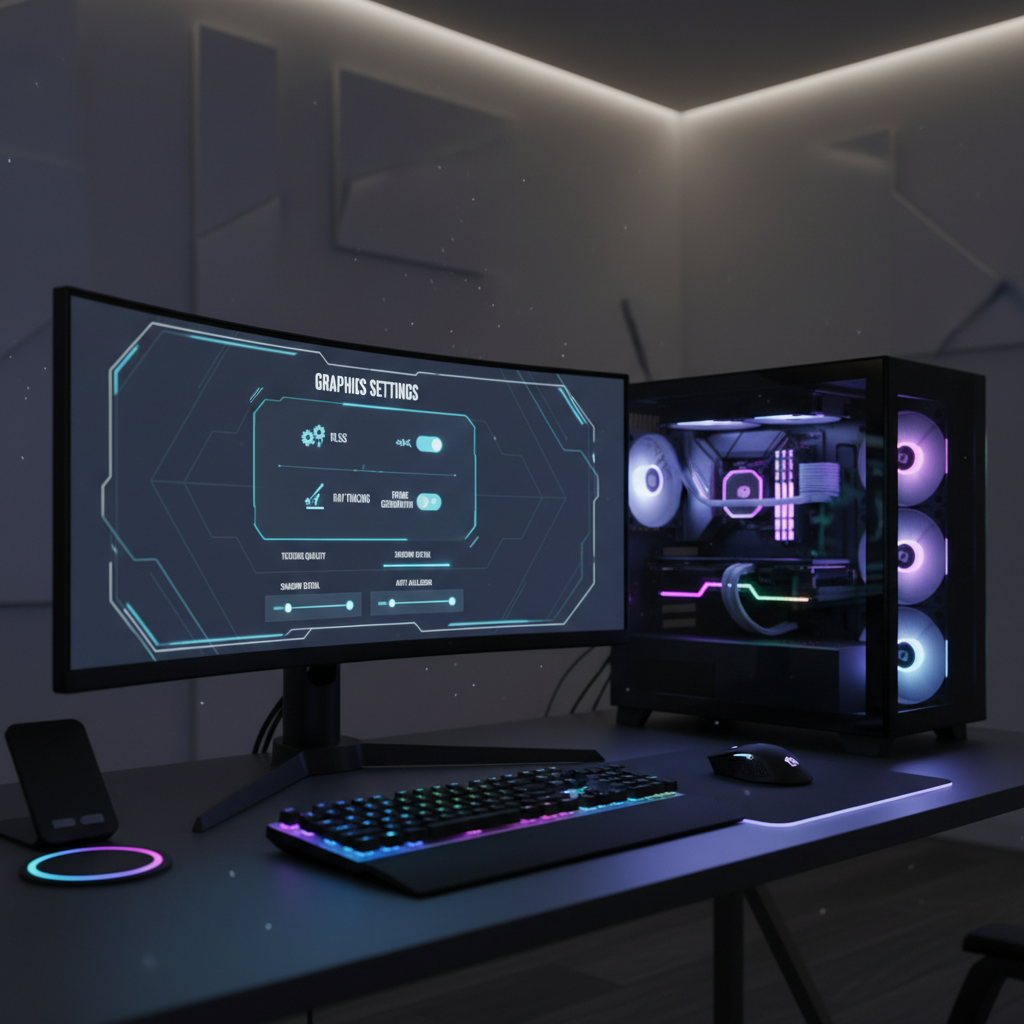
Good defaults for many modern games
- DLSS / DLAA: if you’re GPU-limited at 1440p/4K, DLSS Quality is often the best starting point; DLAA can look great if you have headroom.
- Ray tracing: treat it like a budget. Enable selectively (shadows/lighting/reflections) rather than “Ultra everything.”
- Frame Generation (RTX 40 series): great for higher perceived smoothness, but still watch input latency in competitive titles.
- Texture quality vs VRAM: if VRAM is near the limit, stutter can show up even with high average FPS.
According to Digital Foundry’s benchmarking methodology discussions (publicly available in their performance guides), focusing on frametime consistency and VRAM behavior often predicts “feels smooth” better than average FPS alone.
Common mistakes that waste time (or make things worse)
This is where a lot of RTX owners get stuck, because the system “almost” works.
- Stacking too many tweaks: changing drivers, power limit, undervolt, RAM timings, and in-game settings all at once makes root cause impossible to find.
- Chasing max boost clocks: RTX boost is opportunistic. A slightly lower, steadier clock can outperform a spiky high clock in real gameplay.
- Ignoring PSU and cables: intermittent black screens and sudden reboots can be power-related. If you use 12VHPWR adapters, double-check full insertion and cable bend radius. If you’re unsure, consult a qualified technician.
- Assuming “hotspot” equals “bad”: hotspot temps can be higher than core, and what’s “normal” varies by model and cooler design. Focus on throttling behavior and stability.
When to stop tweaking and get help
If you’ve done baseline checks and moderate tuning and you still see crashes, it may be time to step back. Not every problem is solvable with settings.
- Repeated driver timeouts across multiple games/apps after clean install
- Hard shutdowns/reboots under load, especially if power draw spikes
- Artifacting (visual corruption) at stock settings
- Thermals that climb uncontrollably even with higher fan speeds
At that point, consider vendor support, warranty options, or a local repair shop that can test PSU stability and GPU behavior under known-good hardware. If you’re in a business environment, IT-managed driver baselines can save a lot of time.
Conclusion: a realistic optimization playbook
gpu optimization for nvidia rtx cards works best when you treat it as a short checklist, not an endless hobby. Start with a stable driver and sane Windows settings, then fix thermals, then control power, then undervolt only if you want the efficiency win.
- Action #1: Create one “known-good” profile (stock clocks, clean driver, stable temps) and verify your main game/app behaves.
- Action #2: Make one change at a time, log results, and keep the best setting even if it’s not the most “impressive” slider value.
FAQ
What is the safest first step for RTX performance optimization?
Confirm you’re on a stable driver branch for your use case (Game Ready or Studio), then verify temps and power behavior at stock settings before tuning anything.
Should I use Game Ready or Studio drivers for an RTX card?
If you mostly game, Game Ready is usually fine. If you rely on Adobe apps, DaVinci Resolve, or other creator tools, Studio drivers often reduce surprise regressions, though results can vary by app version.
Does undervolting reduce performance on NVIDIA RTX?
It can, but a well-tuned undervolt often keeps similar performance while lowering heat and noise. If you push voltage too low, you’ll see crashes or performance drops, so small steps matter.
Why do I get high FPS but still feel stutter?
Stutter often comes from frametime spikes, VRAM pressure, shader compilation, background capture overlays, or CPU limits. Capping FPS and tuning texture settings can help more than pure GPU overclocks.
Is it okay to lower the power limit on an RTX GPU?
In many cases, yes. A modest power-limit reduction can improve efficiency and thermals with little real-world loss, but you should test your main workload because some titles scale more with power.
Do I need to change NVIDIA Control Panel global settings?
Usually not. Per-game or per-app profiles are safer, because “fixing” one game globally can create new problems elsewhere.
How do I know if my issue is PSU-related instead of GPU tuning?
Sudden reboots, black screens under load, and instability that ignores driver changes can point to power delivery. Cable seating and a quality PSU matter; if you’re not comfortable diagnosing hardware, get professional help.
If you’re trying to optimize an RTX card for a specific game, streaming setup, or creator workflow and you’d rather not spend nights testing combinations, a focused per-app checklist and a repeatable benchmark routine usually gets you to “smooth and stable” faster.