
amd fsr 3 setup for all games is possible in more situations than people think, but it’s not a single toggle you flip once and forget. Whether you can use it depends on how the game supports upscaling, what GPU you have, and which “FSR 3” feature you actually mean.
If you’re here because one game has FSR 3 and another doesn’t, you’re not doing anything wrong. In real use, you end up mixing three paths: native in-game FSR, driver-level upscaling (FSR 1–style), and third‑party frame generation tools when a title doesn’t expose FSR 3.
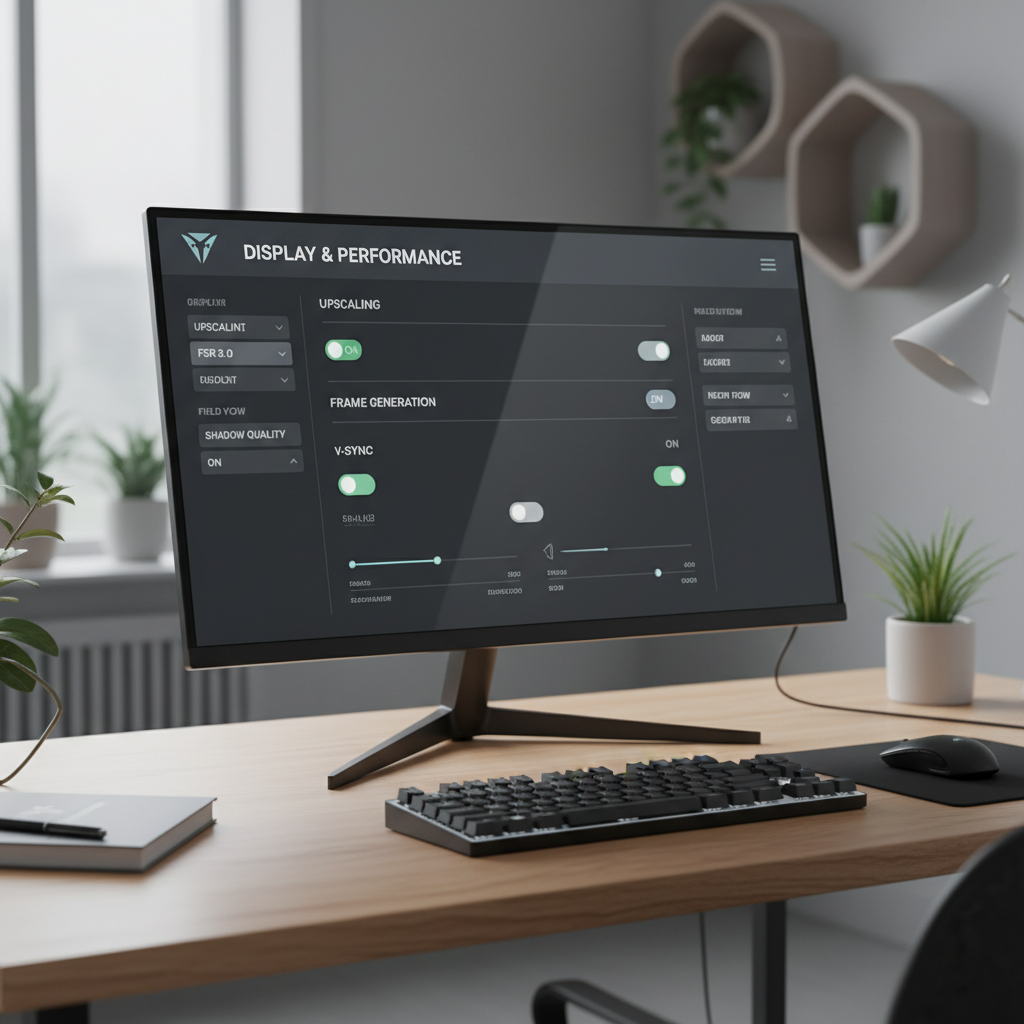
This guide focuses on practical setup: what FSR 3 includes, how to tell which option you can use for each game, and how to avoid the usual “it looks worse” or “input feels laggy” complaints that happen when settings don’t match your FPS range.
What “FSR 3” actually means (and why that matters)
People say “FSR 3” like it’s one feature, but it’s usually two separate things:
- FSR upscaling: render at a lower resolution, then upscale to your display resolution to gain FPS.
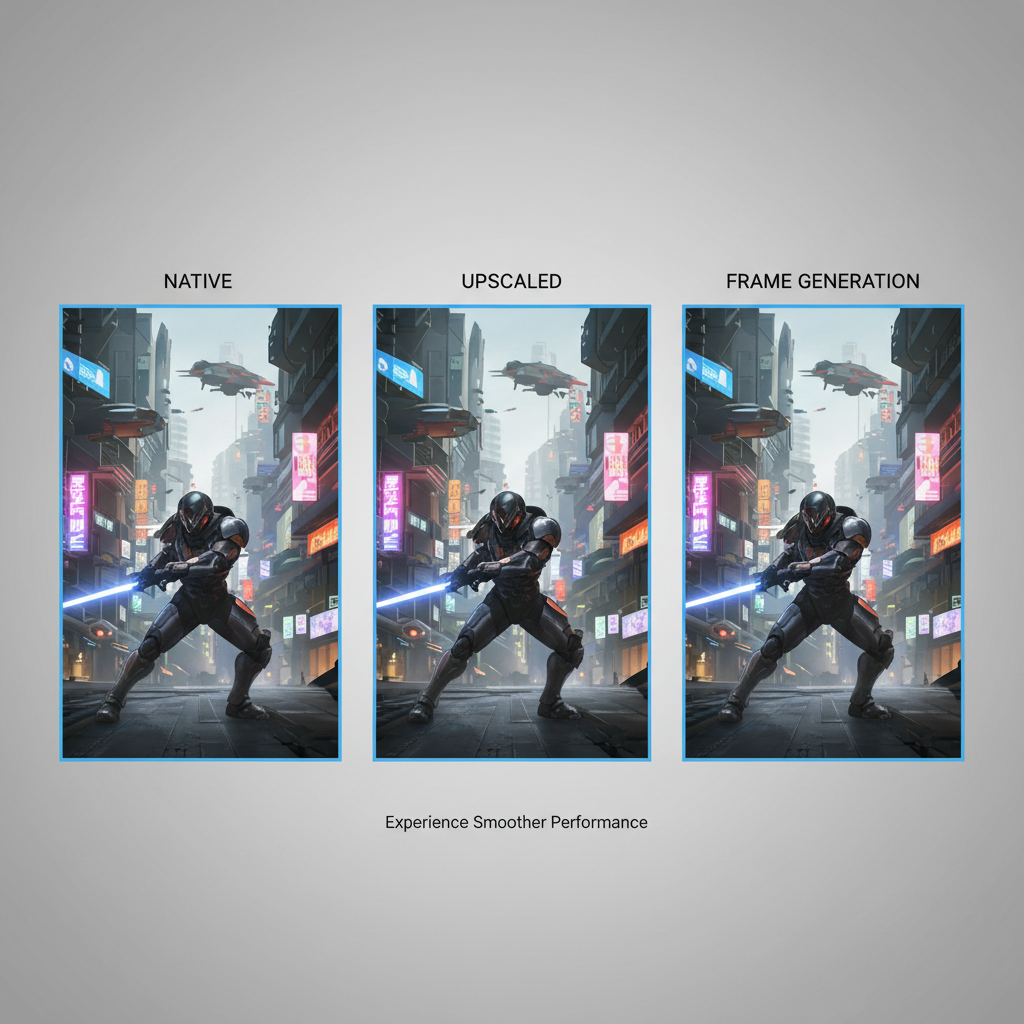
- Frame generation: the game (or tool) inserts AI/algorithmic “generated” frames between real frames to raise perceived smoothness.
In many titles, you can use FSR upscaling without frame generation, and the reverse path (frame generation without native FSR 3 integration) often needs a workaround. That’s the real reason amd fsr 3 setup for all games feels inconsistent.
According to AMD, FSR is designed to be broadly compatible across GPUs, but each game still needs to implement the feature set it exposes in its own graphics menu. So “works on my friend’s game” doesn’t automatically translate to yours.
Quick compatibility check: which path fits your game?
Before changing anything, use this quick decision tree. It saves a lot of time.
Step 1: Check the in-game Upscaling menu
- If you see FSR 3 (or “FSR 3 Frame Generation”), you’re in the best case: use the game’s implementation.
- If you only see FSR 2 or FSR 1, you can still improve performance, just without native frame gen.
- If you see only DLSS (common on some NVIDIA-sponsored titles), you may need driver-level upscaling or another method.
Step 2: Identify your GPU and the game’s API
- AMD Radeon and many NVIDIA/Intel GPUs can use FSR upscaling in supported titles.
- Frame generation depends heavily on the specific implementation (in-game vs third-party) and can be picky about DX12/Vulkan support and overlays.
If your goal is “more FPS with minimal hassle,” start with upscaling. If your goal is “looks smoother on a 120–165Hz monitor,” frame generation becomes the next lever.
Setup table: the most common “all games” configurations
Here’s the realistic view: you’ll usually rotate between these options depending on the title.
| Scenario | What you can use | Where to enable | Best for | Watch-outs |
|---|---|---|---|---|
| Game has FSR 3 (upscaling + frame gen) | Native FSR 3 | In-game graphics menu | Highest quality + simplest setup | Needs careful FPS/latency tuning |
| Game has FSR 2 only | FSR 2 upscaling | In-game graphics menu | Big FPS gains with decent image quality | Sharpening and ghosting can vary |
| Game has no FSR option | Driver-level upscaling (RSR-style) | AMD Adrenalin (Radeon settings) | “Works everywhere” approach | Not as clean as in-game upscalers |
| You want frame gen in unsupported games | Third-party frame generation tools | Tool overlay / mod workflow | Smoother motion on high refresh displays | Can add artifacts, latency, compatibility issues |
How to enable FSR 3 in games that support it (the “best case”)
If the game offers FSR 3 directly, use that first. This is the cleanest way to get both performance and stable visuals.
Recommended baseline settings
- Start with FSR Quality mode. Balanced is fine if you’re truly GPU-limited, but Quality usually avoids the “why is everything shimmering?” moment.
- Turn on frame generation only after your base FPS is stable. A lot of bad impressions come from using frame gen when base FPS is already unstable.
- Use an in-game FPS cap if available (or a driver cap) to smooth frame pacing.
Key point: base FPS matters
Frame generation tends to feel better when your “real” FPS sits in a comfortable range (often around 50–70+). Below that, you may see more artifacts and the controls can feel off, even if the on-screen FPS number looks great.
According to NVIDIA’s guidance on frame generation as a general category (DLSS FG), input latency still depends on the underlying rendered frames, and that principle applies broadly: generated frames don’t replace the need for a solid base frame rate.
How to get an “FSR-like” boost in games without FSR (driver-level upscaling)
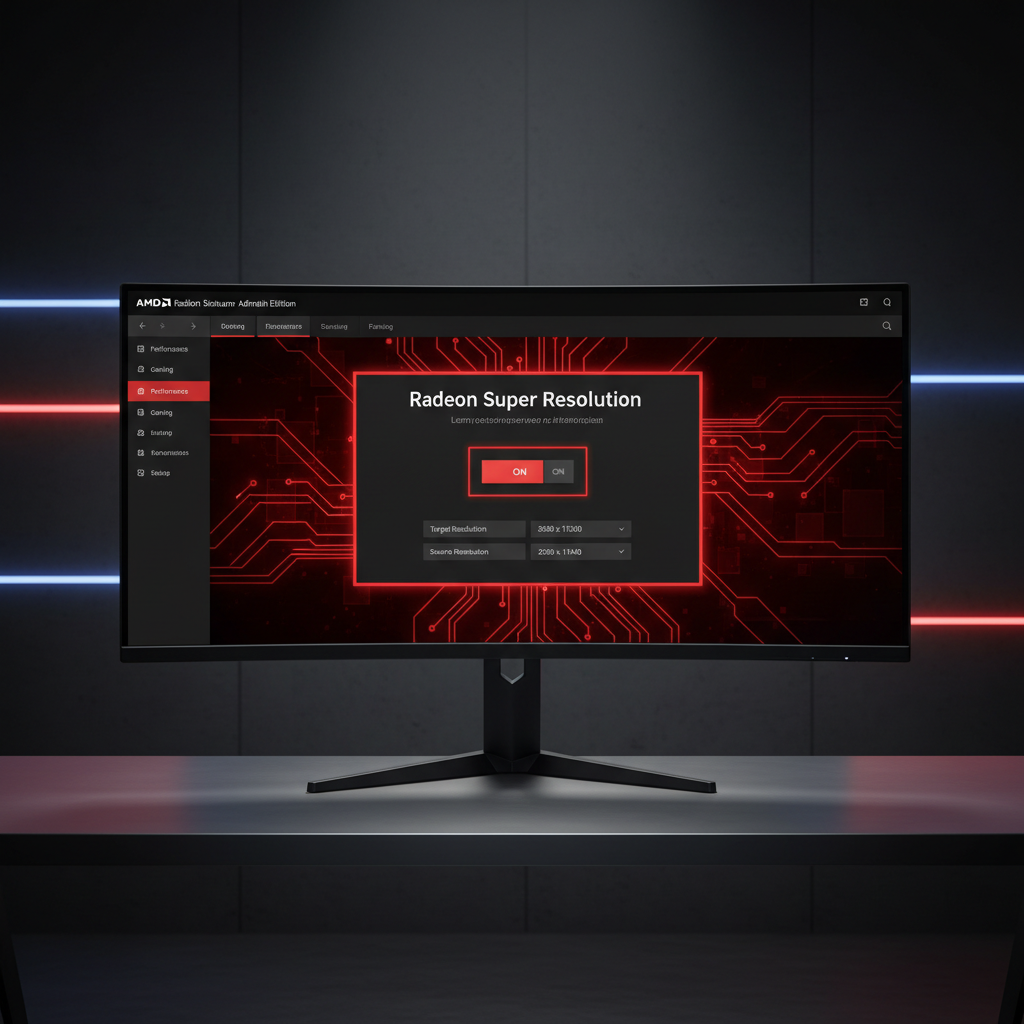
If your game has no upscaler option, the closest “all games” method on Radeon is driver-level upscaling, often referred to as RSR (Radeon Super Resolution). It’s not identical to FSR 2/3, but it’s simple and widely usable.
Typical workflow
- Set your monitor to native resolution (for example 2560×1440).
- Enable RSR in AMD Adrenalin (global or per-game profile).
- In the game, choose a lower resolution (for example 1920×1080), then let the driver upscale it to native.
This approach is a good fit for competitive titles or older games that never added modern upscaling. Image quality varies by game UI scaling and post-processing, so expect some tinkering.
Practical tuning: make it look good and feel responsive
This is where most setups succeed or fall apart. A few small settings can make the difference between “wow, free FPS” and “why does this look weird.”
Key takeaways (save these)
- Upscaling mode first, frame generation second: lock visuals and stability, then add smoothness.
- Keep VRR on if you have it (FreeSync/G-SYNC Compatible). It hides frame pacing issues that upscaling sometimes exposes.
- Don’t oversharpen: sharpening sliders look tempting, but heavy sharpening can exaggerate shimmer.
- Cap FPS slightly below refresh rate (for example 141 on a 144Hz panel) to reduce swings.
Common “feels laggy” causes
- Frame generation enabled while base FPS too low
- V-Sync forced incorrectly (double buffering behavior can add latency)
- Running borderless with conflicting overlays or capture tools
If your goal is amd fsr 3 setup for all games with minimal headache, prioritize consistency: stable frametimes beat peak FPS almost every time.
Mistakes that waste time (and how to avoid them)
A few patterns show up again and again when people try to force one universal configuration.
- Assuming “FSR 3” is a driver toggle: in most cases, full FSR 3 frame generation is game-level, not a universal driver switch.
- Using the lowest render resolution immediately: ultra performance modes can break UI readability and amplify artifacts.
- Changing five settings at once: tweak one variable, then test in the same location in-game.
- Ignoring CPU limits: if you’re CPU-bound, upscaling won’t help much because the GPU isn’t the bottleneck.
Also, if you install third-party tools for frame generation, treat them like any mod: compatibility varies, some anti-cheat systems may flag overlays, and you should stick to reputable sources and read the project notes carefully.
When it’s worth getting more help (or going back to basics)
If you’re troubleshooting for hours, it’s usually one of these:
- Driver issues: clean install or rolling back a driver version sometimes fixes weird stutter patterns.
- Conflicting overlays: Discord, recording software, performance overlays, and injectors can fight each other.
- Game-specific bugs: some patches temporarily break upscaling or frame generation.
When you suspect that, check the game’s patch notes and AMD’s driver release notes first. According to Microsoft, DirectX versions and Windows updates can affect game compatibility and performance behavior, so staying current (without rushing into day-one updates on a tournament night) is a reasonable middle ground.
If you’re still stuck, asking in the game’s community with your GPU model, resolution, API mode (DX11/DX12/Vulkan), and a short clip of the issue usually gets better answers than “FSR looks bad.”
Conclusion: a realistic “all games” FSR 3 approach
The most reliable way to think about amd fsr 3 setup for all games is a layered plan: use native in-game FSR 3 when available, fall back to in-game FSR 2 when that’s what the title offers, then use driver-level upscaling for games with no built-in option. Frame generation in unsupported games can work, but it’s the most fragile path and it’s not always worth the trade-offs.
If you want one action to take today, pick one game you play a lot, set FSR to Quality, stabilize base FPS with a modest cap, then decide if frame generation improves your experience or just inflates a number.
FAQ
Can I use FSR 3 in every game automatically?
Usually no for full FSR 3 frame generation, because that feature is commonly implemented per game. You can often use driver-level upscaling broadly, which is the closest “works everywhere” option.
Is driver-level upscaling the same as FSR 3?
Not really. Driver-level upscaling is more universal but typically less context-aware than in-game solutions like FSR 2/3, so UI and fine detail can look rougher depending on the title.
Why does frame generation feel smooth but also more delayed?
Generated frames improve motion smoothness, but the control response still depends on the real rendered frames. If base FPS is low or frametimes are unstable, the “laggy” feeling becomes more noticeable.
What settings should I change first if visuals look noisy or shimmery?
Move from Balanced to Quality, reduce sharpening, and avoid very low internal resolutions. Many games also benefit from a stable FPS cap and VRR enabled.
Does FSR work on NVIDIA or Intel GPUs?
FSR upscaling in games is often GPU-agnostic, so it can work on non-AMD cards when the game includes it. Exact support depends on the title and the feature set exposed.
Is it safe to use third-party frame generation tools in online games?
It depends on the tool and the game’s anti-cheat rules. In many competitive online titles, overlays and injectors can be risky, so it’s smart to check the game’s policy and avoid anything that could be flagged.
What’s a good target FPS before turning on frame generation?
Many people get a better experience when base FPS stays roughly in the 50–70+ range, but it varies by game and sensitivity to input latency. If it feels worse, turn it off and keep the upscaler.
If you want a simpler setup
If you’re trying to standardize settings across a big library, it often helps to build a small per-game checklist and reuse it: resolution, cap, VRR, upscaling mode, then optional frame generation. If you share your GPU model, monitor refresh rate, and 2–3 games you care about most, you can usually narrow it down to a repeatable profile without endless trial-and-error.