
Pixel roguelike games for steam deck can be the perfect “one more run” fit, but only if the text stays readable, the controls feel natural, and performance stays steady in handheld mode. If you have ever bounced off a great roguelike because tooltips looked tiny or quick inputs felt awkward, you are not alone.
This topic matters because the Steam Deck magnifies small friction. Pixel art can look gorgeous on the Deck screen, yet UI scale, font choice, and particle-heavy effects decide whether a run feels relaxing or exhausting. The same game can go from “addictive” to “I’ll play this on desktop” based on a couple settings.
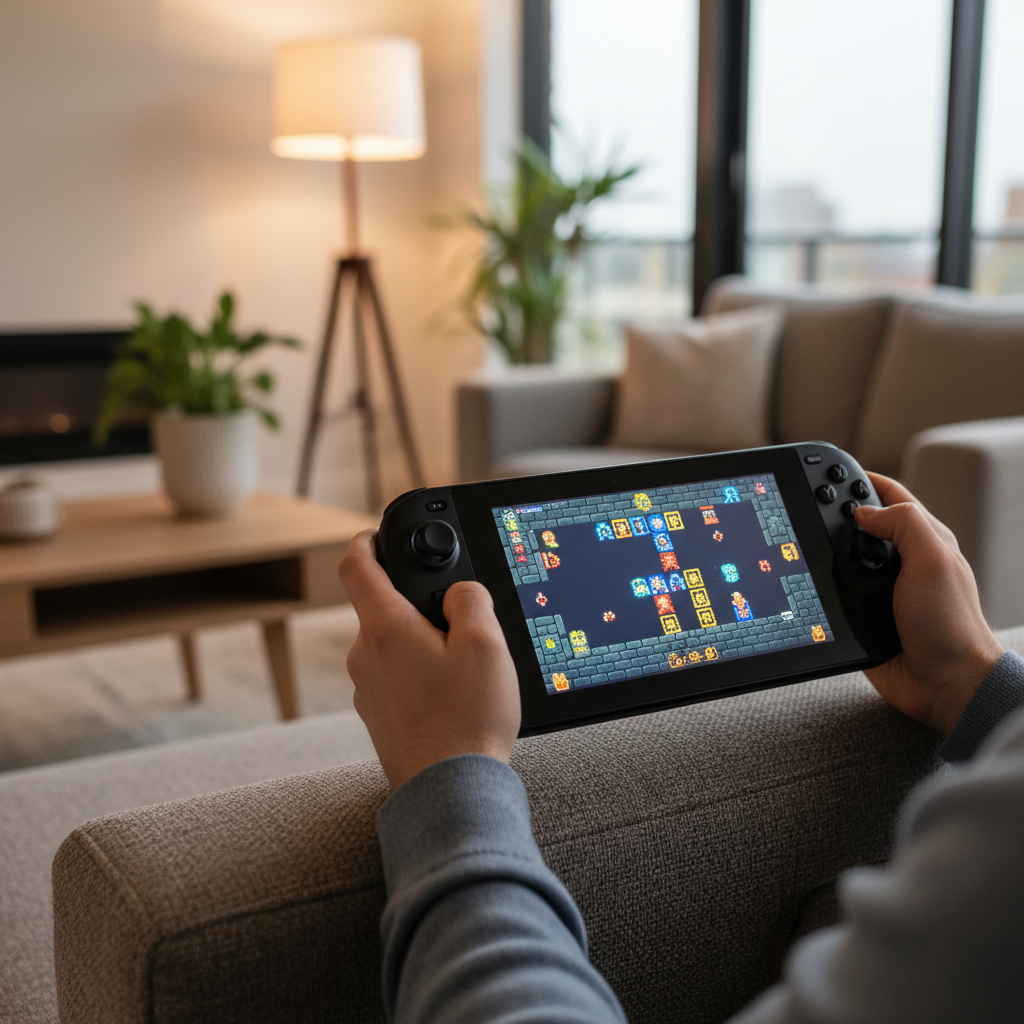
Below is a practical way to pick pixel roguelikes that actually feel good on Steam Deck, plus a short list of common issues and fixes. I will also call out when “Verified” helps, when it does not, and how to test a game quickly before you commit to a long campaign.
What makes a pixel roguelike “Steam Deck friendly”
When people say a title “plays great” on Deck, they usually mean more than framerate. For pixel roguelike games for steam deck, the real make-or-break items are readability, input timing, and how much the game expects a mouse.
- Readable UI at 800p: big fonts, scalable UI, and clear icons beat gorgeous but tiny tooltips.
- Controller-first design: menus you can navigate with a D-pad or stick, plus sensible button mapping.
- Short-session structure: runs that save cleanly, suspend/resume behaves well, and you can stop after a boss.
- Stable performance under effects: some pixel games still hammer the GPU with lighting, shaders, and particles.
- Low “precision tax”: twitch aiming is doable, but the Deck’s strength is comfortable, repeatable inputs.
According to Valve (Steam), Steam Deck Compatibility checks are based on things like controller support, text legibility, launcher behavior, and default settings, which is useful as a first filter. Still, compatibility badges do not always reflect personal tolerance for small text or fast target selection.
A quick self-check: are you likely to enjoy it on Deck?
Before you buy or install, a 60-second self-check can save you from the classic “great game, wrong device” feeling. This is especially true with pixel roguelike games for steam deck, where UI density varies wildly.
- You dislike tiny text: prioritize games with UI scale sliders, large fonts, or minimal tooltips.
- You play mostly handheld: favor slower tactical roguelikes over cursor-heavy, fast-aim shooters.
- You rely on quick glances: cluttered screens and dense inventory management may tire you out.
- You care about battery life: look for games that run well capped at 40 FPS or even 30 FPS.
- You switch between Docked and Handheld: pick titles with good controller prompts and clean resolution scaling.
If two or more bullets feel “too real,” aim for controller-native roguelikes and be picky about UI. If none apply, you can be more adventurous and use the trackpads when needed.
Recommended pixel roguelike picks (what they do well)
There is no single best list for everyone, but these are the kinds of picks that typically translate well to Deck because they keep the loop tight and controls straightforward. Use the table to match your preference, not to chase a “top” ranking.
At-a-glance comparison
| Game | Why it fits Steam Deck | Best for | Potential friction |
|---|---|---|---|
| Dead Cells | Controller-first, clear readability, fast runs | Action, responsive combat | High-speed gameplay can feel intense handheld |
| Enter the Gungeon | Solid controller support, great pick-up-and-play loop | Bullet-hell roguelike fans | Aiming precision may push you to use gyro |
| The Binding of Isaac: Rebirth | Short rooms, endless build variety, runs suspend well | Synergy hunting, replayability | Visual clutter late-run can be a lot on 7-inch screen |
| Rogue Legacy 2 | Reads well, smooth controller movement, good pacing | Platforming plus meta-progression | Some players prefer larger UI for trait text |
| Risk of Rain Returns | Classic 2D flow, readable silhouettes, strong run cadence | Arcade-style runs and item combos | Busy fights can benefit from framerate cap tuning |
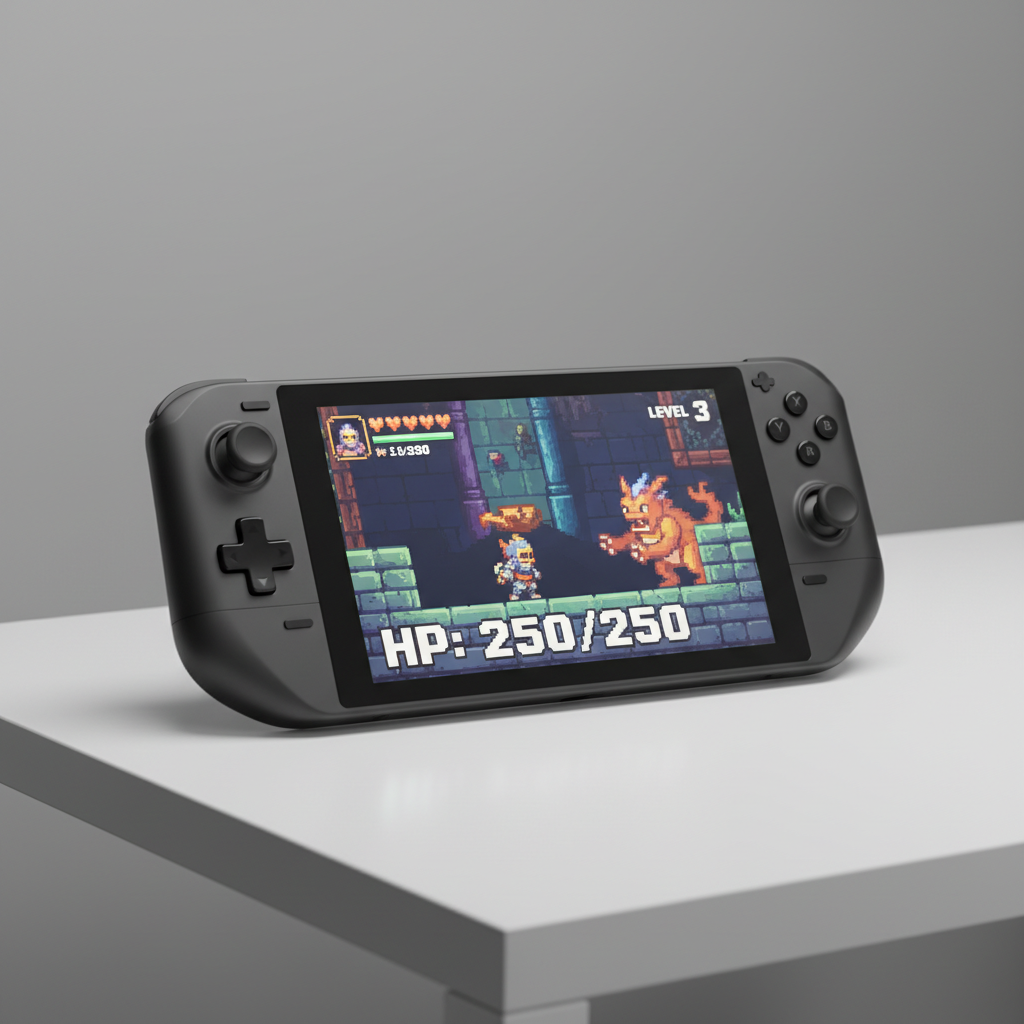
If you want a simple rule, start with one “twitch” pick and one “thinking” pick, then see which feels better in handheld. Many people discover they love fast combat on Deck, but only with the right control tweaks.
Deck settings that actually improve pixel roguelikes
A lot of guides stop at “turn on FSR,” but pixel art can look worse if you oversharpen. The goal is stable performance and legible UI, not maxed-out scaling tricks. With pixel roguelike games for steam deck, these settings usually give the most value.
- Cap framerate intentionally: try 40 FPS for smoothness and battery balance, or 60 FPS if inputs feel better. If the game stutters under effects, drop to 30 FPS for consistency.
- Use integer scaling carefully: it can keep pixels crisp, but only if the game resolution plays nicely with the display. If text becomes too small, abandon it.
- Reduce post-processing: bloom, motion blur, and heavy screen shake often hurt clarity on a small screen.
- Turn on gyro “aim assist” for shooters: set right stick for broad movement, gyro for micro-adjustments.
- Adjust in-game UI scale: if there is a slider, move it sooner than you think you need.
One more small thing that helps: increase in-game contrast or outline settings when available. Pixel sprites can melt into busy backgrounds on a handheld display.
How to test a game in 15 minutes (before you commit)
You do not need a spreadsheet to judge whether a title belongs in your Deck rotation. A short test run catches most of the problems that make pixel roguelike games for steam deck frustrating.
- Start a run and open every menu: inventory, map, settings, codex. If one screen feels annoying, that annoyance repeats for 30 hours.
- Read tooltips at normal posture: do not lean in. If you must squint, treat that as a real signal.
- Fight a busy room: lots of enemies, effects, pickups. Watch for frame pacing issues more than raw FPS.
- Pause, suspend, resume: sleep the Deck mid-run, wake it, confirm audio and inputs return normally.
- Try one remap: map a frequently used action to a back button, then see if hand strain drops.
Key takeaway: if the game feels “fine” only when you use the trackpad constantly, it may be better as a docked or desktop title unless you truly enjoy hybrid controls.
Common mistakes (and what to do instead)
Most disappointment comes from buying on vibes, then discovering the UI or controls fight you. These fixes are not glamorous, but they often salvage the experience.
- Mistake: trusting the badge alone. Do instead: skim recent Steam reviews for words like “text,” “UI,” “controller,” “Deck.”
- Mistake: leaving default controls. Do instead: use a community layout as a baseline, then tweak one thing at a time.
- Mistake: forcing aggressive upscaling. Do instead: aim for clarity first, then performance, then sharpness last.
- Mistake: chasing 60 FPS everywhere. Do instead: prefer stable frame pacing at 40 or 30 if the game spikes.
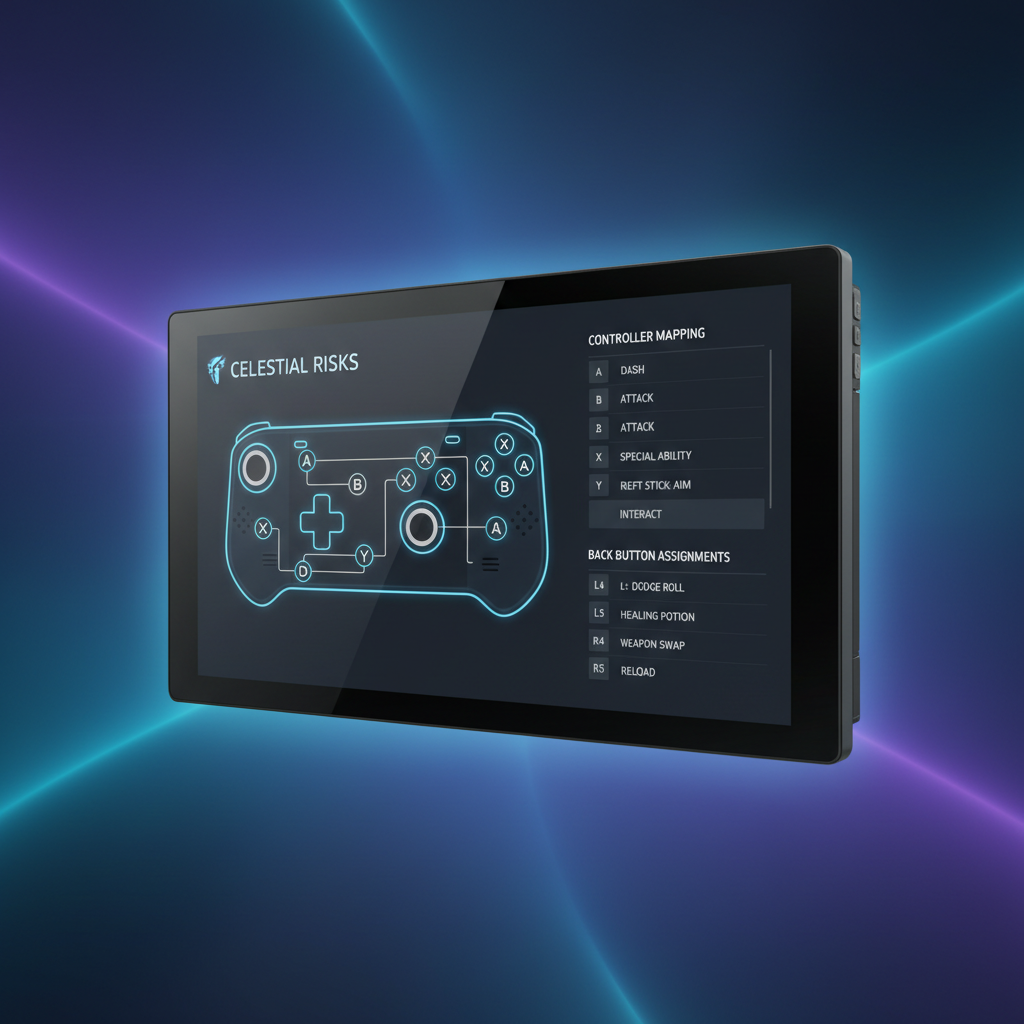
If hand comfort becomes an issue, treat it like a setup problem, not a personal flaw. Back buttons, lighter trigger pulls, and slightly slower camera sensitivity can make long sessions much easier.
When it makes sense to seek extra help (or switch approach)
Sometimes the issue is not the game, it is the interaction between the game, Proton version, and your personal setup. If you hit repeated crashes, cloud save conflicts, or controller prompts flipping between keyboard and gamepad, it is reasonable to ask for help.
- Check Valve resources: Steam Deck Verified notes, and game-specific compatibility comments on Steam.
- Search ProtonDB: user reports can highlight which Proton version behaves better for a specific title. Treat reports as situational, not guarantees.
- Ask the community with specifics: include whether you play handheld or docked, your framerate cap, and what exactly breaks.
If you experience eye strain, headaches, or persistent wrist discomfort, consider reducing session length and adjusting brightness and text size, and if symptoms persist it may be smart to consult a healthcare professional. Comfort problems are common with handhelds, and they are usually solvable, but you should not push through pain.
Conclusion: build a “Deck-first” pixel roguelike rotation
The best pixel roguelike games for steam deck are the ones you can read easily, control without fighting the UI, and suspend mid-run without anxiety. If you only do two things, do this: run a 15-minute usability test before you commit, then lock in a framerate cap that keeps the game steady.
If you are choosing your next title today, pick one controller-native action roguelike plus one slower, more tactical option, then keep the one that feels effortless in handheld. That “effortless” feeling is the whole point of playing on Deck.
FAQ
What are the best pixel roguelike games for Steam Deck if I hate tiny text?
Look for games with UI scaling, larger fonts, and clean iconography. If a title relies on dense item descriptions every room, it may feel better docked unless it offers strong accessibility options.
Do Steam Deck Verified games always control well?
Not always. Verified status is a strong signal for baseline compatibility, but “controls well” is personal, especially for aiming-heavy roguelikes where gyro and sensitivity choices matter a lot.
Should I use FSR for pixel art roguelikes?
Sometimes, but cautiously. Pixel art can turn muddy or overly sharp depending on the filter. If you like crisp pixels, try native resolution first, then experiment with scaling only if performance needs it.
How can I make shooter-style roguelikes easier on Steam Deck?
Enable gyro for fine aiming, lower stick sensitivity slightly, and map a dodge or roll to a back button. Many players find that combination feels closer to mouse precision without constant trackpad use.
Is 40 FPS worth using for roguelikes?
In many cases, yes. 40 FPS can feel noticeably smoother than 30 while saving battery and heat versus 60, especially in effects-heavy rooms where stability matters more than peak numbers.
What if a game keeps switching between keyboard prompts and controller prompts?
That often happens when the game detects mouse movement from a trackpad or touch input. Try locking the layout to gamepad-only, avoid accidental trackpad touches, or check community layouts that solve prompt flicker.
Are turn-based or tactical roguelikes better for handheld play?
Often, yes, because they tolerate slower inputs and smaller screens. Still, some have dense tooltips, so the deciding factor becomes UI scale and how quickly you can navigate menus with a controller.
If you are building a Steam Deck library and want a more “install it and it just feels right” path, make a short shortlist, test each game for readability and control comfort, then keep only the ones that pass your handheld standards. Your future self will thank you after the tenth run.