
how to fix black screen when launching games usually comes down to a small set of culprits: display mode conflicts, GPU driver issues, overlays, or a corrupted game config that blocks the first frame from rendering.
The frustrating part is the black screen often looks the same no matter the cause, your PC seems “fine,” the game “opens,” but you never reach the menu. So you end up guessing and reinstalling things you probably didn’t need to touch.
This guide keeps it practical: quick checks to identify which bucket you’re in, then targeted fixes for Windows 10/11 and common launchers. You’ll also see a small “symptom → likely cause” table so you can stop chasing random fixes.
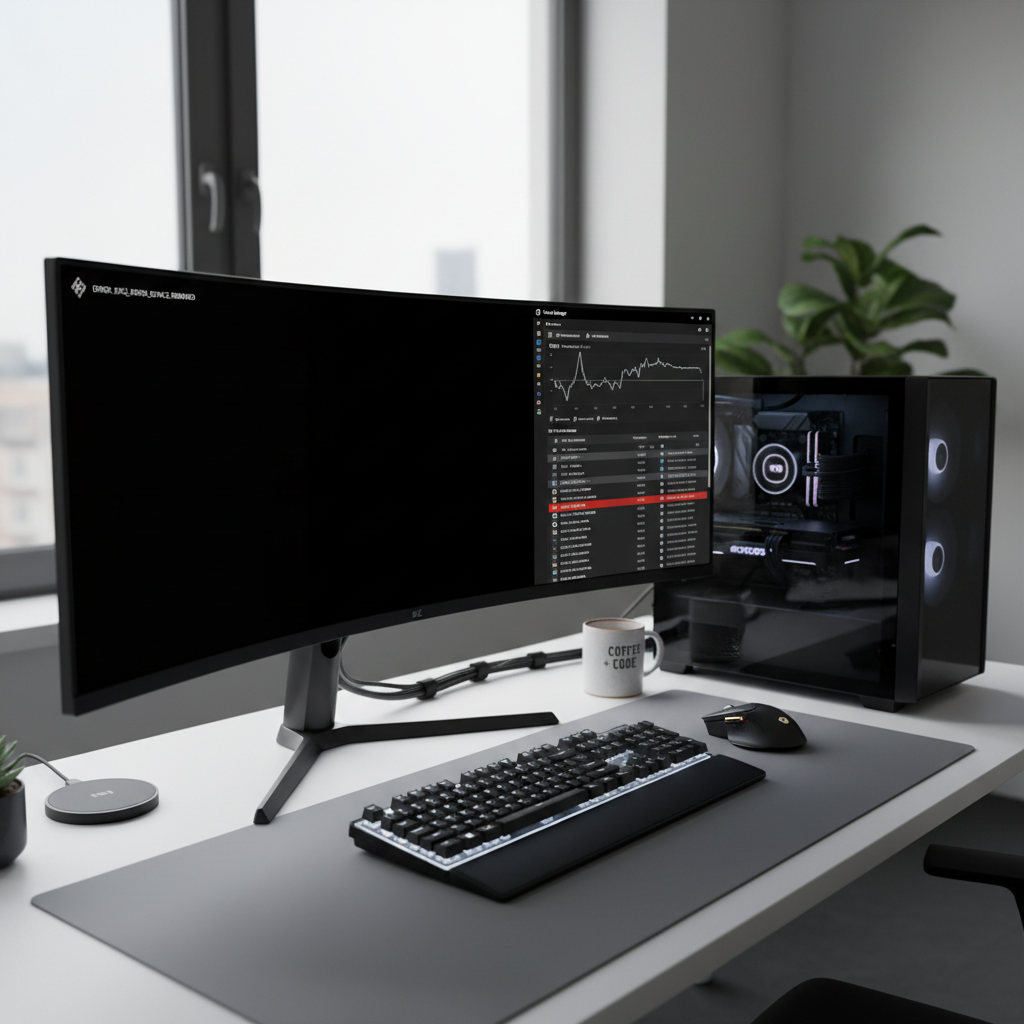
Fast triage: what your black screen is telling you
Before you change settings, take 60 seconds to observe what “black screen” actually means on your machine. That single detail often narrows the fix.
- Black screen + audio continues: the game renders poorly (resolution/refresh/HDR/fullscreen) or an overlay hooks the frame.
- Black screen + game not responding: driver crash, DirectX/Vulkan init failure, or corrupted config.
- Black screen then desktop returns: the game crashes on launch, often due to anti-cheat, missing runtimes, or bad mods.
- Black screen only on one monitor: multi-monitor/refresh mismatch, scaling, or wrong GPU output.
Key point: if you can still Alt+Tab and the game window is “alive,” prioritize display mode and overlays before you reinstall anything.
Common causes at a glance (use this table)
If you prefer a shortcut, match what you see to the most common underlying cause, then jump to that section.
| Symptom | Most likely cause | Best first fix |
|---|---|---|
| Black screen after logo, audio plays | Fullscreen/HDR/refresh mismatch | Force windowed or borderless, reset resolution |
| Black screen only with Discord/Steam overlay on | Overlay conflict | Disable overlays and performance monitoring |
| Black screen + GPU fans spike, then crash | Driver instability | Clean-install GPU driver, roll back if needed |
| Works once, then black screen every time | Corrupted config/cache | Delete config folder, verify game files |
| Only on external monitor/TV | HDMI refresh, HDR, color format | Set 60Hz, disable HDR, try different port/cable |
Fix display mode conflicts (fullscreen, HDR, scaling, refresh rate)
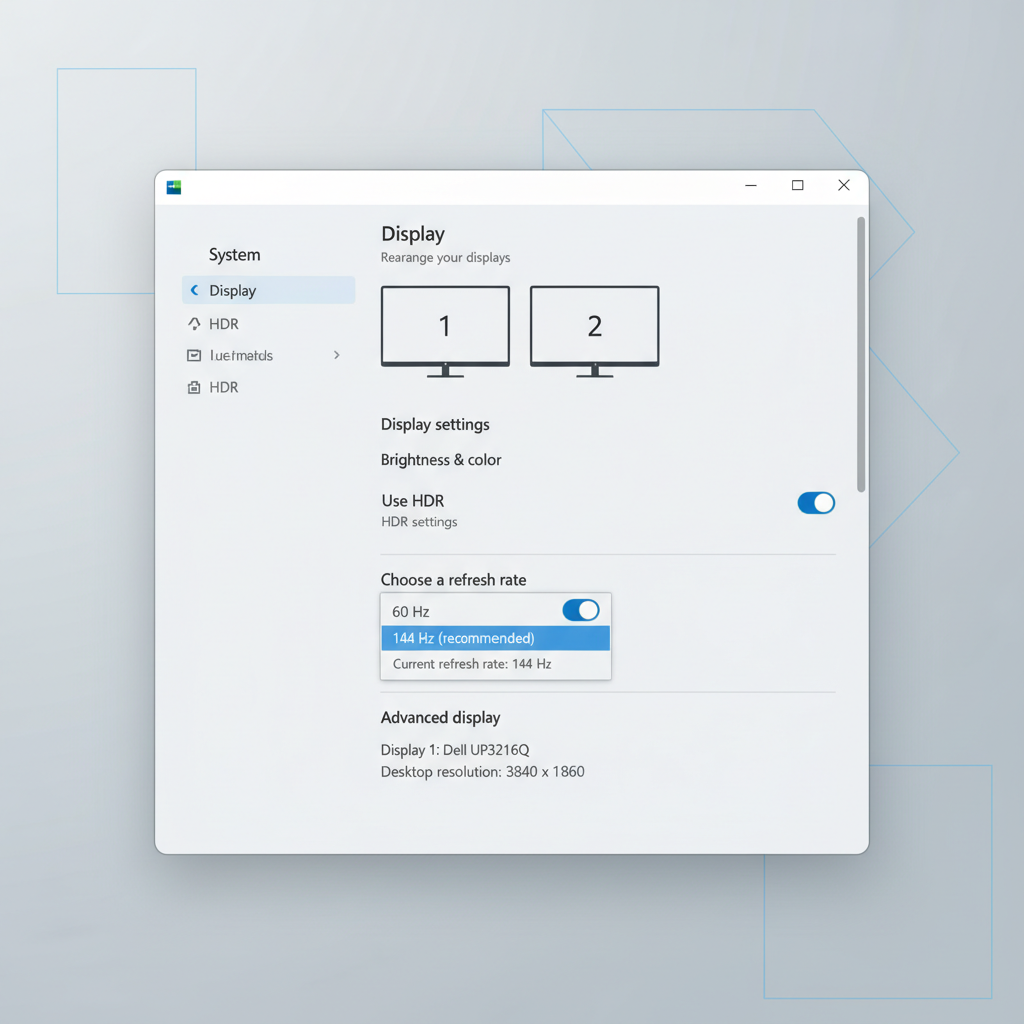
A lot of “black screen on launch” reports come from the game selecting a display mode your monitor accepts on paper but fails in practice, especially with 144Hz/165Hz panels, HDR monitors, ultrawides, and TVs.
Try these in this order:
- Force windowed or borderless: many games accept launch options like -windowed, -w, or -fullscreen 0. On Steam, right-click the game → Properties → Launch Options.
- Temporarily set your display to 60Hz: Windows Settings → System → Display → Advanced display. If it starts, you can raise refresh rate later.
- Turn off HDR for testing: Windows Settings → System → Display → HDR. If the game launches, re-enable HDR and check in-game HDR toggles.
- Disable Fullscreen optimizations: right-click the game .exe → Properties → Compatibility → check “Disable fullscreen optimizations.”
- Reset Windows scaling to 100% or 125% temporarily: odd scaling + older titles can trigger a black frame at launch.
If you’re wondering how to fix black screen when launching games on a TV, start with refresh rate and HDR first, then swap HDMI ports, some ports support different modes on the same TV.
Update, roll back, or clean-install your GPU driver (the right way)
Drivers are the obvious answer, but the detail that matters is how you update. A messy upgrade path can keep broken shader caches or settings that repeat the same crash loop.
According to Microsoft, keeping Windows updated helps ensure compatibility and stability for devices and drivers. That matters because GPU drivers and Windows graphics components move together.
What to do
- Run Windows Update and reboot, even if it feels unrelated.
- Clean-install the GPU driver using NVIDIA/AMD/Intel installers and selecting the clean install option when available.
- If the issue started after a driver update, roll back one version and retest. Newer is not always “more stable” for every game on day one.
- Reset GPU control panel overrides (forced AA, low latency modes, custom scaling) back to default for the game profile.
If you’re troubleshooting how to fix black screen when launching games and you also see random desktop flickers or driver timeouts, treat that as a driver stability signal, not a “game-only” problem.
Disable overlays and injectors (Steam, Discord, GeForce, Xbox Game Bar, MSI Afterburner)
Overlays hook into how frames render. When they clash with a game’s renderer, you can get a black window even though the game technically runs.
- Turn off Steam Overlay: Steam → Settings → In Game → disable Steam Overlay. You can also disable per game in Properties.
- Disable Discord Overlay: User Settings → Game Overlay → off.
- Disable Xbox Game Bar for testing: Windows Settings → Gaming → Xbox Game Bar.
- Pause performance tools: MSI Afterburner/RivaTuner, FPS counters, Reshade, recording tools. Don’t uninstall yet, just turn them off to confirm.
A practical rule: if the game launches normally right after you disable overlays, re-enable them one by one. Don’t flip everything back on at once, you won’t learn which one broke it.
Repair the game install: verify files, reset config, clear shader cache
This is where a lot of stubborn cases land. If a config file saves an unsupported resolution, or a shader cache becomes corrupted, the game can black screen every single launch.
Do these low-risk repairs
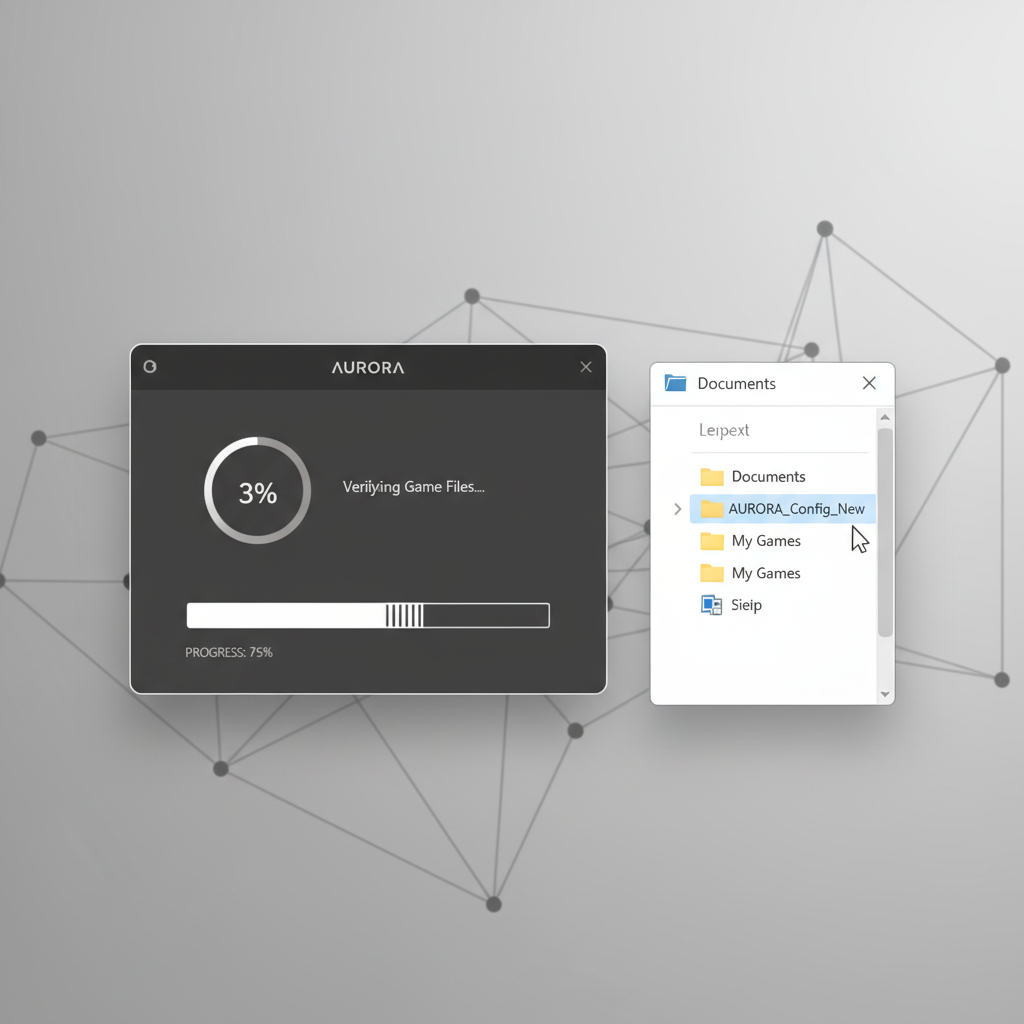
- Verify game files (Steam/Epic/EA app/Battle.net). This fixes missing or altered files without a full reinstall.
- Reset the game settings folder: rename the config folder in Documents or AppData so the game rebuilds it. You can restore it later if needed.
- Clear shader cache: NVIDIA/AMD have shader cache locations; some games also store shaders locally. Clearing forces a rebuild, which can remove bad shader artifacts that present as a black frame.
Reinstalling can work, but it’s slow and sometimes pointless if the broken config lives in your user profile and survives reinstalls. Resetting the settings folder often moves faster.
Fix Windows and runtime issues (DirectX, Visual C++, permissions)
Some black screens are actually “failed to initialize graphics API,” but you never see the error because the window goes black and hangs.
- Install or repair Visual C++ Redistributables: many games ship installers in a _CommonRedist folder. Run them manually if needed.
- Update DirectX components when the game includes a DirectX installer. For older titles, missing legacy components still happens.
- Run as administrator (test only): right-click the game .exe → Run as administrator. If it fixes the issue, you likely have a permissions or security software conflict to resolve properly.
- Temporarily disable third-party antivirus “game protection” features: not forever, just to confirm whether it blocks the game’s anti-cheat or file access.
According to Valve (Steam Support), verifying integrity of game files is a standard step for resolving launch issues, and it pairs well with repairing common runtimes when a title depends on them.
Practical step-by-step: a 15-minute checklist that usually works
If you want one tight path instead of experimenting, run this sequence and stop as soon as the game launches normally.
- Step 1: Reboot PC, unplug extra controllers/USB devices, then try again.
- Step 2: Disable overlays (Steam/Discord/Xbox Game Bar) and any FPS/OC tools.
- Step 3: Force windowed or borderless, set Windows refresh to 60Hz, disable HDR for test.
- Step 4: Verify game files, then reset game config folder.
- Step 5: Clean-install GPU driver, then retest before changing GPU tweaks.
Quick reminder: when you’re testing how to fix black screen when launching games, change one variable at a time, otherwise you’ll “fix it” without knowing why, then the issue returns after your next update.
When you should escalate (and what info to gather)
If you still hit a black screen after the steps above, the cause may be more specific: hardware instability, failing GPU/PSU, aggressive overclocks, or game-specific anti-cheat conflicts. It’s not always something you can solve by toggling settings.
- Check Event Viewer for application errors and driver timeouts.
- Grab crash logs from the game’s log folder, plus launcher logs if available.
- Return CPU/GPU/RAM to stock if you use overclocks or undervolts, even “stable” settings can fail in one specific game.
- Contact the game’s support with logs, your GPU model, driver version, Windows version, and whether it happens in windowed mode.
If you suspect hardware instability or you see repeated GPU driver resets across multiple games, it may be worth consulting a qualified technician, especially if the PC shuts down, reboots, or shows artifacts.
Conclusion: get from black screen to playable with fewer guesses
Most black screen launches trace back to a display mode mismatch, an overlay conflict, or a driver/config problem that repeats until you reset it. Start with windowed mode and overlays, then move to file verification and a clean driver install, those steps solve a surprising share of cases without a full reinstall.
If you want one action today: disable overlays and force windowed/borderless, then retest. If that works, you’ve already narrowed the problem to a manageable set of settings.
FAQ
- How do I fix a black screen when launching games but I can still hear sound?
That usually points to rendering or display mode issues. Try forcing windowed/borderless, set refresh rate to 60Hz, disable HDR, then retest with overlays off. - Why does my game launch to a black screen only on my second monitor?
Multi-monitor setups often expose refresh rate or scaling mismatches. Make the target monitor your primary display, match refresh rates temporarily, and disable HDR on the secondary display. - Does verifying game files actually help with black screen on startup?
Often, yes, especially after interrupted updates or modded installs. It won’t fix driver conflicts, but it can repair missing executables, shaders, and core assets that prevent a clean launch. - How to fix black screen when launching games after a GPU driver update?
Try rolling back one driver version and resetting GPU control panel overrides. If that resolves it, wait for the next stable driver release before updating again. - Can Discord or Steam Overlay cause a black screen?
It can, particularly with certain APIs (DX12/Vulkan) or anti-cheat protected titles. Disable overlays to confirm, then re-enable one by one if you need them. - Should I reinstall the game if it always black screens?
Reinstalling can help, but reset the user config folder first, since that folder may keep the bad resolution or graphics setting even after reinstall. - What if every game launches to a black screen?
That’s more likely a system-wide issue: GPU driver instability, Windows graphics settings, or hardware problems. Test with stock clocks, run Windows Update, and consider professional help if you see driver resets or crashes across multiple titles.
Light next step
If you’re still stuck and you’d rather not spend another night trial-and-error, it can help to keep a simple checklist of what you changed and in what order, then share your driver version, display setup, and game logs when asking for help, you’ll usually get a useful answer faster.