
best vr capture card 2026 is really a search for one thing: stable, low-lag VR capture that doesn’t randomly drop frames, go black, or desync audio the moment you hit Record.
If you’ve tried to record Quest, PSVR2, or PCVR gameplay, you already know the pain points, your “1080p60” looks soft, HDR breaks the signal, or your laptop’s USB port becomes the bottleneck. A capture card can fix it, but only if it matches your VR setup and your workflow.
This guide focuses on what actually changes the outcome: passthrough latency, supported refresh rates, HDR behavior, audio routing, and whether you should buy an external USB card or a PCIe internal model. I’ll also call out the common traps people fall into when they shop by “4K” alone.
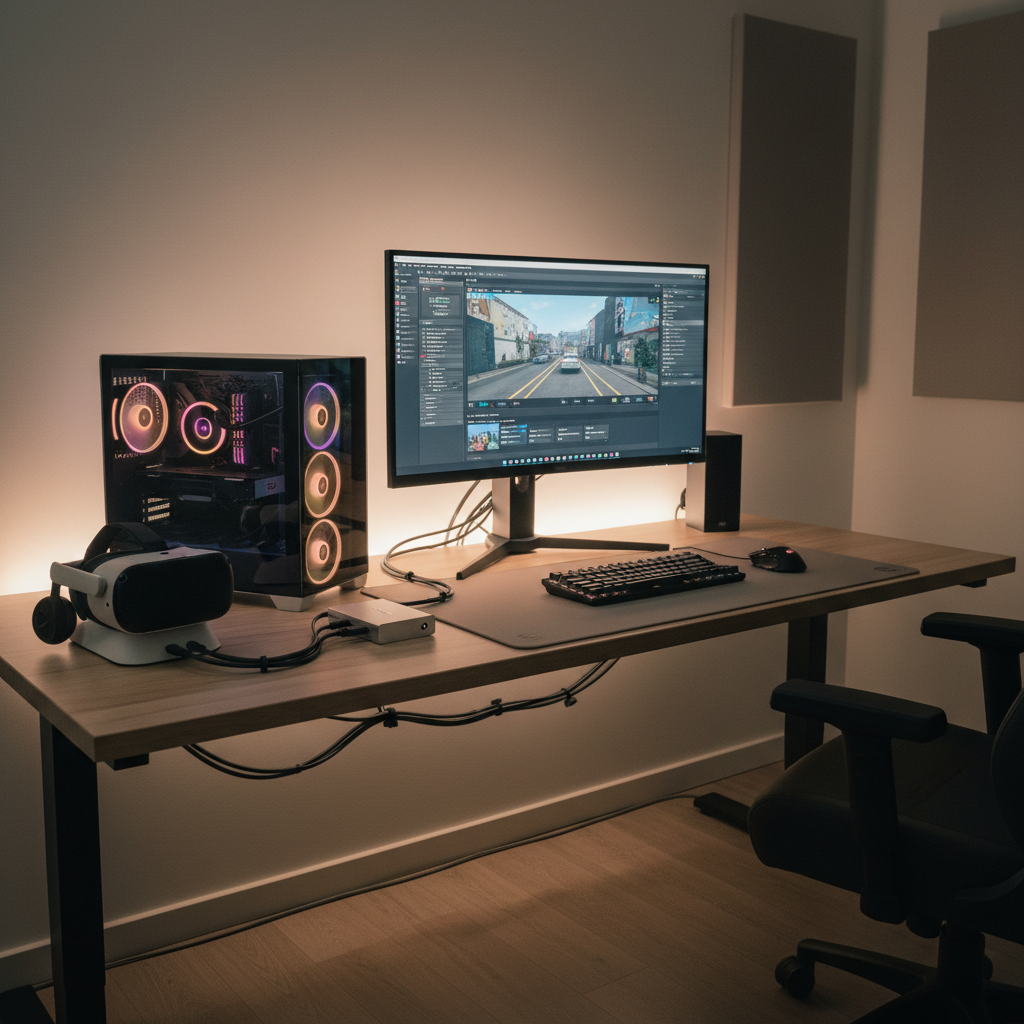
What makes VR capture different from “regular” console capture
VR is awkward for capture because your headset wants high refresh rates and sometimes non-standard resolutions, while your capture chain prefers predictable formats. Add a splitter, a dock, or a USB-C adapter, and handshake issues show up fast.
- Higher refresh expectations: Many VR players target 90Hz or 120Hz. Even if your recorded file is 60fps, your passthrough path still needs to feel responsive.
- Stricter latency tolerance: A few extra milliseconds can feel “off,” especially if you also monitor audio through the PC.
- HDCP/HDR complications: Some devices and apps enable content protection or HDR in ways that break capture.
- Audio routing is messier: Party chat, spatial audio, mic monitoring, and Bluetooth paths can create echo or missing channels.
According to NVIDIA, keeping the encode pipeline efficient (hardware encoding where possible) helps maintain performance while recording or streaming, which matters more in VR where headroom is already tight.
Quick checklist: pick the right capture type for your setup
Before shopping for the best vr capture card 2026, sort yourself into one of these “real-world” setups. It prevents buying a great card that’s wrong for your ports or refresh needs.
Setup A: PCVR (SteamVR) on a desktop
- If you have a free PCIe slot and want reliability, PCIe cards usually win.
- If you move between machines, USB 3.2 Gen 2 external cards can still work well, just be picky about USB controllers and cables.
Setup B: Standalone headset (Quest) mirrored to a PC
- Many creators do better with direct PC capture (ADB/scrcpy, Oculus tools, or casting) than HDMI capture, depending on the app.
- If you use an HDMI dock or adapter, verify it outputs a standard format your card accepts.
Setup C: Console VR (PSVR2)
- Expect HDCP management and occasional limitations on what can be captured.
- A card with solid 4K60 support and predictable passthrough behavior is the safer bet.
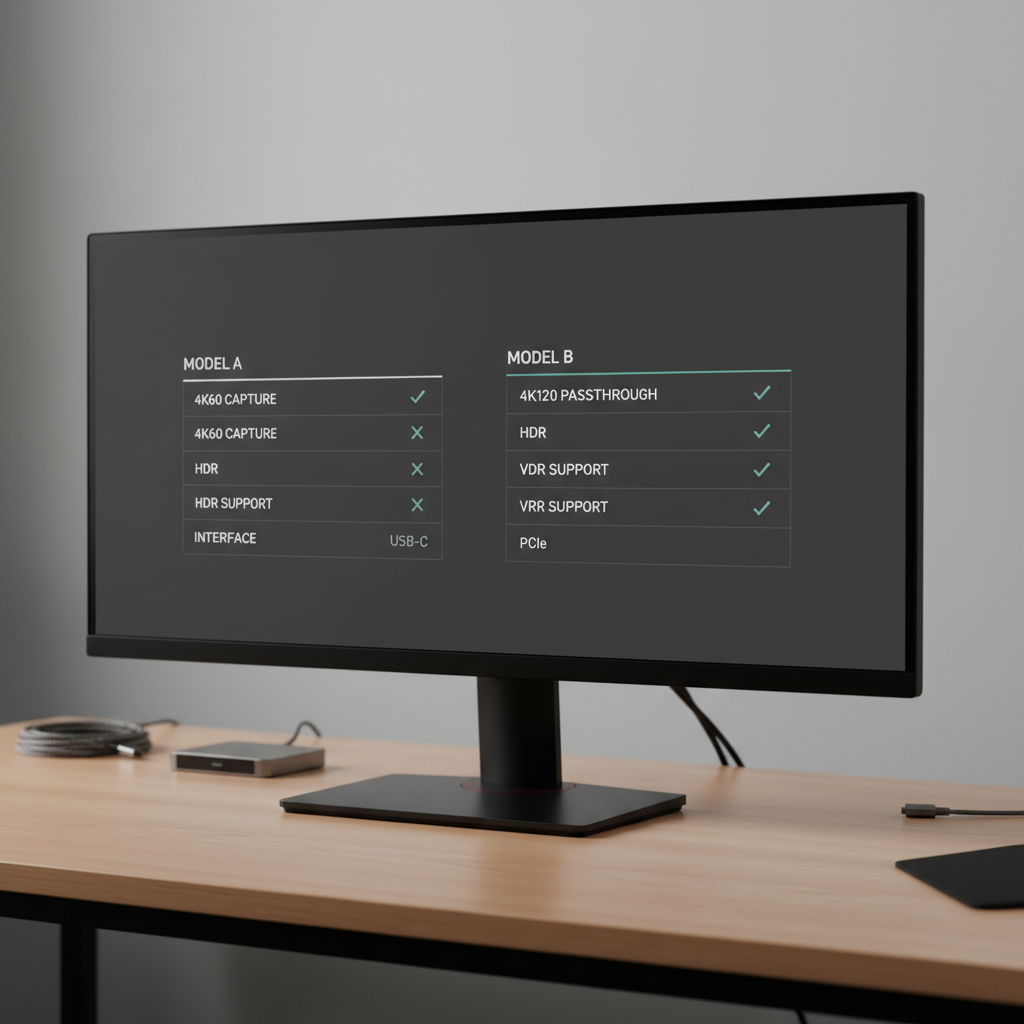
Specs that actually matter (and which ones are marketing)
Most buying mistakes happen here: people compare “4K” labels without checking how they’ll use the signal. For VR capture, prioritize these.
- Passthrough vs capture limits: A device may capture 4K60 but only pass through 4K60, not 4K120. If you game at 120Hz on a display, that matters.
- HDR behavior: Some cards accept HDR but record SDR, some tonemap, and some break the handshake. If you care about HDR, confirm the exact pipeline.
- VRR (Variable Refresh Rate): Many capture chains dislike VRR. In practice, you might disable VRR to stop flicker or black screens.
- Color format and bit depth: For clean footage, look for 4:2:2 options and 10-bit support where it’s real, not just pass-through.
- Audio input options: A 3.5mm line-in can save you when HDMI audio gets weird, but it can also introduce noise if you don’t manage gain.
- Driver/software stability: The “best vr capture card 2026” for you is often the one that behaves with OBS on your exact PC, not the one with the boldest box art.
According to Microsoft (Windows guidance on USB and device connectivity), bandwidth and controller compatibility can affect video devices. Translation: a “fast” USB port on paper can still act flaky if it shares lanes with other peripherals.
Best VR capture card 2026: practical picks by scenario
I’m not going to pretend there’s one universal winner. Below are picks that tend to make sense in the US market, grouped by how people actually record VR.
| Scenario | Recommended type | Why it fits | Watch-outs |
|---|---|---|---|
| Desktop PCVR, serious streaming | PCIe capture card | Lower overhead, stable capture, fewer USB surprises | Needs open slot, harder to move between PCs |
| Laptop creator, travel setup | USB-C (10Gbps) external | Portable, easy setup, good enough for 4K60 workflows | USB controller/cable quality can make or break it |
| High refresh gameplay on monitor | 4K120 passthrough-capable | Keep smooth play while capturing a downscaled feed | VRR/HDR edge cases, higher cost |
| “Just need clean 1080p60” | Reliable 1080p card | Simple, cheaper, easier on OBS and storage | Future upgrades may require replacement |
If you want a short list to start with, look for current-generation models from established lines such as Elgato (HD60 X / 4K X), AVerMedia (Live Gamer series), and Blackmagic Design (more “production” oriented). Specific model choice should follow your refresh/HDR needs, not brand loyalty.
How to set it up without introducing lag or black screens
Most VR capture problems come from the chain, not the card. This is the setup approach that usually reduces surprises.
Step-by-step signal chain (typical passthrough)
- Source (PC/console/dock) → Capture Card IN
- Capture Card OUT → Gaming display (or monitor/TV)
- Capture card → PC via USB-C/USB-A (or PCIe internally)
- OBS: add Video Capture Device, set resolution/fps to match your intended record format
Settings that tend to stabilize VR capture
- Turn off VRR if you see intermittent black screens or flicker.
- Test HDR off first, then add HDR once everything works.
- Prefer 60fps recording unless you have a clear reason for 120fps; files get huge and editing becomes heavier.
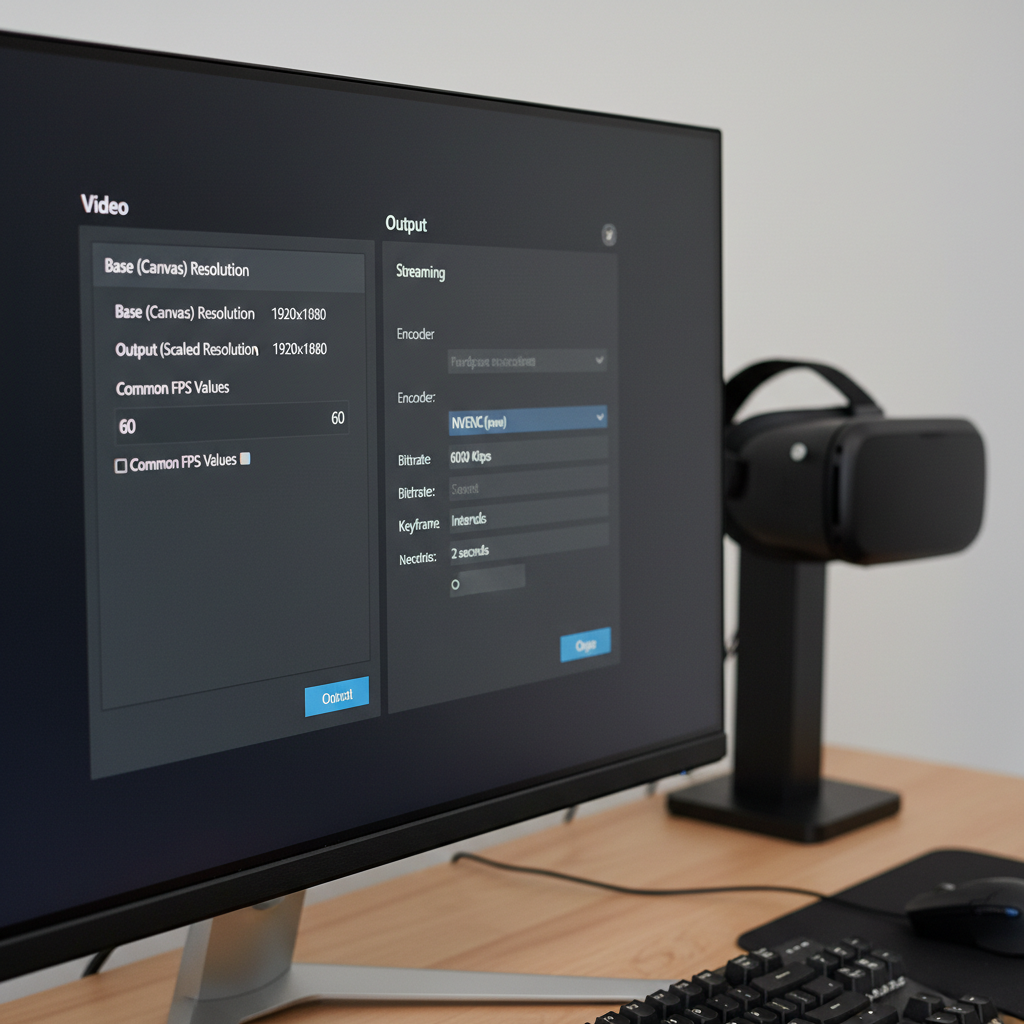
- Use NVENC/AMF/Quick Sync hardware encoding to avoid CPU spikes.
According to OBS Project documentation, matching your canvas/output settings and using hardware encoders where available can improve stability. In plain terms, don’t ask OBS to rescale and encode something exotic while your VR app fights for GPU time.
Common mistakes that waste money (or ruin footage)
These show up constantly when people chase the best vr capture card 2026 and end up with the wrong bottleneck.
- Buying 4K capture for a 1080p workflow: If you publish to YouTube at 1080p, a high-quality 1080p60 pipeline can look better than a shaky 4K setup.
- Ignoring USB realities: Plugging into a front-panel hub, using a long cable, or sharing bandwidth with storage can cause stutter.
- Assuming “HDR supported” means “HDR recorded”: Sometimes it’s passthrough-only, sometimes it tonemaps, sometimes it needs very specific settings.
- Monitoring audio through the wrong device: That’s how you get echo, delay, or missing party chat.
- Over-optimizing too early: People tweak bitrates for hours while the real issue is VRR or a bad HDMI adapter.
When to ask for help (and what to provide)
If you still see black screens, no signal, or audio drift after the basic fixes, it’s usually faster to loop in support or a knowledgeable friend. Capture problems are often compatibility issues, not “you did something wrong.”
- Share your full chain: source device, adapters, HDMI cable type, capture model, PC specs, monitor model.
- Note your exact output mode: 4K60, 1440p120, HDR on/off, VRR on/off.
- Provide an OBS log if you use OBS, it often reveals dropped frames and encoder overload.
If you suspect HDCP restrictions on console content, check the platform’s official guidance. For anything involving hearing discomfort from monitoring delays or loudness, consider safer audio levels and, if symptoms persist, consult a qualified professional.
Conclusion: choosing the “best” VR capture card without overbuying
The best vr capture card 2026 is the one that matches your refresh rate needs, behaves with your ports, and stays stable in OBS for long sessions. For many creators, a reliable USB-C 4K60 card is plenty; for serious PCVR streaming, PCIe often feels calmer day-to-day.
Key takeaways:
- Prioritize passthrough behavior and stability over headline resolution.
- Start with VRR off and HDR off, then add complexity once the chain works.
- Test for 30 minutes before buying extra cables and splitters.
If you want a simple next step, write down your target record format (usually 1080p60 or 4K60), then shop for a card that supports that natively on your actual USB/PCIe setup, not just “up to” on the box.
FAQ
What is the best vr capture card 2026 for Quest gameplay?
It depends on whether you’re capturing an HDMI output from a dock/adapter or capturing a mirrored feed through PC tools. If you do use HDMI, pick a stable USB-C 10Gbps card and keep the chain simple, fewer adapters usually means fewer handshakes to fail.
Do I need 4K120 passthrough for VR?
Only if your monitor gaming experience relies on 120Hz and you don’t want to drop to 60Hz while capturing. Many creators record 60fps while playing at higher refresh, but that requires passthrough support and a cooperative signal chain.
Why do I get a black screen when I enable HDR?
HDR can change the handshake and color format in ways some capture cards or adapters won’t accept. Try disabling VRR, using a shorter certified HDMI cable, and setting a standard output like 4K60 SDR to confirm the baseline works.
Is an internal PCIe capture card better than USB?
Often yes for desktops, mainly because it avoids USB bandwidth quirks and tends to be more consistent under load. USB cards can still be excellent if your port and cable are solid and you’re not overloading the bus.
Can I record VR at 90fps or 120fps?
Sometimes, but it’s not guaranteed end-to-end. Your source must output that format over HDMI, your capture device must accept it, and your recording pipeline must encode it reliably. Many people choose 60fps for editing simplicity and stability.
What OBS settings are a safe starting point for VR capture?
Try 1080p60 or 1440p60, hardware encoding (NVENC/AMF/Quick Sync), and a reasonable bitrate for your platform. If you see encoder overload, reduce resolution before touching ten different “advanced” toggles.
How do I capture voice chat and headset mic cleanly?
Plan audio first: decide whether chat comes via HDMI, USB interface, or a mixer. Avoid monitoring the same audio through two paths, that’s where echo and delay appear. If you’re unsure, a simple wired headset-to-USB interface path is often easier to control.
If you’re trying to pick the best vr capture card 2026 for your exact headset, console, and monitor combo, it can help to map your full connection chain and your target output format first, then choose hardware that matches those constraints instead of guessing from specs alone.