
best ssd for gaming fast load times is really about cutting the “dead time” between clicking Play and actually playing, plus reducing hitching when a game streams textures or loads a big open-world area.
If you’ve already got a strong GPU and a decent CPU, storage is often the quiet bottleneck people ignore. In 2026, that matters more than it used to because modern engines stream more assets, and big day-one patches make a slow drive feel even slower.
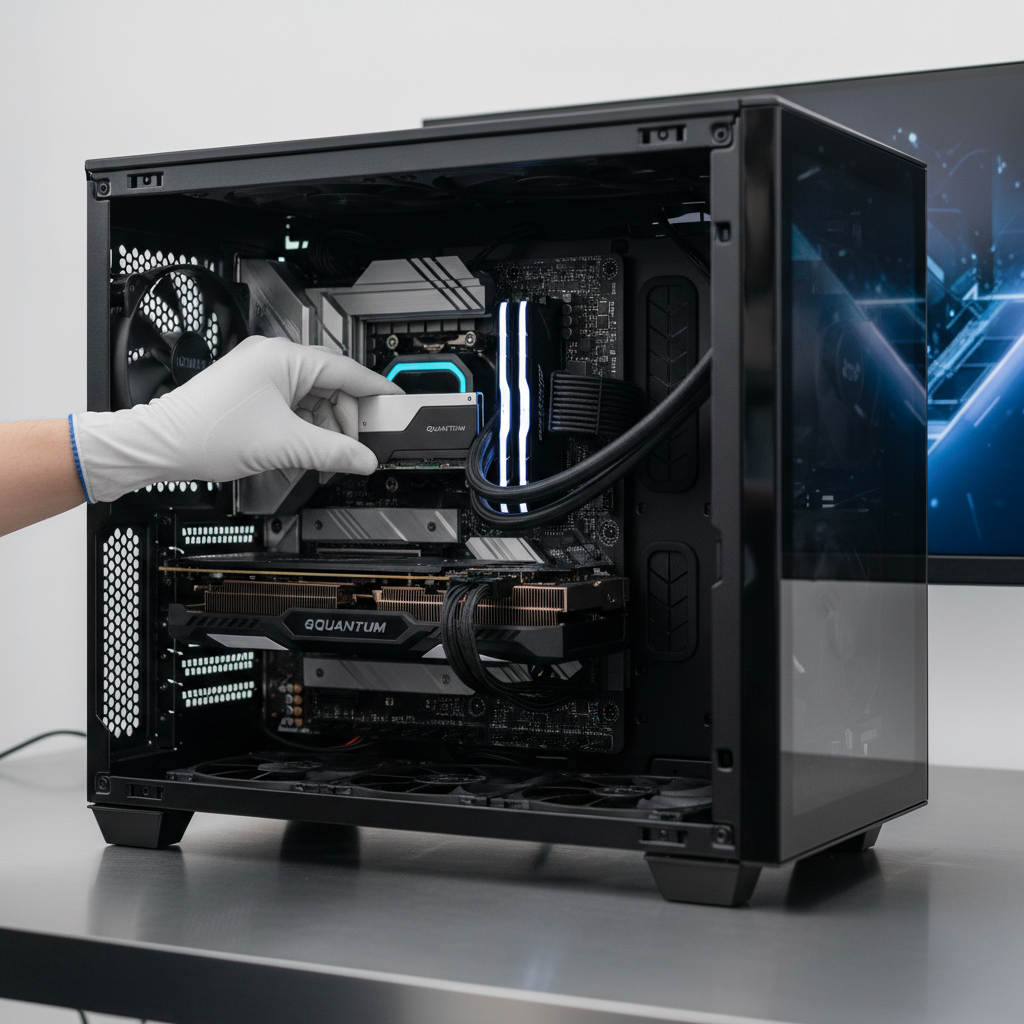
This guide focuses on what actually moves the needle for load times and smoothness, then translates that into practical picks by budget and platform. No magic numbers, just the stuff you can verify on a spec sheet and in your own setup.
What “fast load times” really depends on in 2026
Load times are a chain: game engine behavior, CPU scheduling, drive latency, and how well the SSD holds performance when it gets warm or close to full. Marketing tends to focus on peak sequential speeds, but games don’t behave like a single giant file copy.
- Random reads and latency: Many games pull lots of small files and chunks, where responsiveness matters more than headline GB/s.
- PCIe generation and lanes: PCIe 4.0 still feels “fast” for gaming, while PCIe 5.0 can help in edge cases, but it comes with higher heat and often higher cost.
- Controller + NAND quality: Better controllers keep performance steadier under mixed workloads, and higher-quality NAND typically holds up longer.
- DRAM vs DRAM-less: Many DRAM-less NVMe drives rely on HMB (host memory buffer). It can be fine for budget builds, but heavy game libraries and frequent updates often feel better on drives with DRAM.
- SLC cache behavior: Some SSDs benchmark well until the cache runs out, then large installs and file moves slow down sharply.
According to Microsoft, DirectStorage is designed to reduce storage bottlenecks by improving how game data moves from storage to GPU, which means storage quality and platform support can matter more over time even if your current games don’t fully use it yet.
Quick self-check: which SSD upgrade actually fits your situation?
Before shopping, it helps to be honest about what you’re fixing. A lot of “slow loading” complaints are a mix of drive limits and system quirks.
- You’re on a SATA SSD and load screens feel long in newer open-world titles → NVMe upgrade usually makes sense.
- You’re on an HDD for game installs → almost any SSD is a big, immediate win.
- You already have NVMe but stutter happens during traversal → check free space, thermals, and whether the drive is QLC with aggressive caching.
- Laptop gaming with thin chassis → prioritize efficiency and thermal stability, not the highest PCIe 5.0 peak.
- PS5 expansion → compatibility and sustained performance matter as much as peak specs.
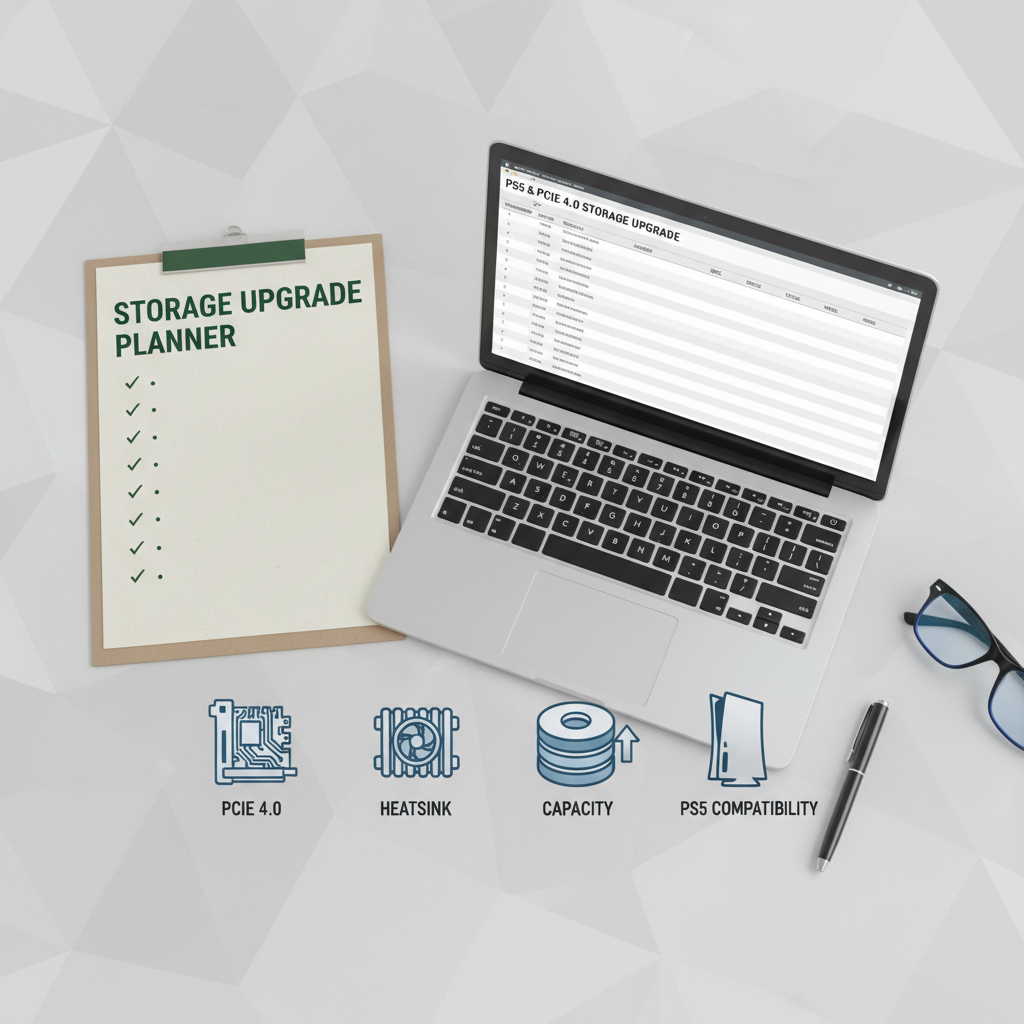
If you want the shortest path to results, decide your platform, set capacity first, then pick a tier of performance. Most people overspend on peak speed and underspend on space.
Key specs to compare (without getting lost in benchmarks)
When you’re comparing drives for the best ssd for gaming fast load times, focus on a handful of signals that tend to correlate with a “snappy” gaming experience.
Capacity (the underrated performance spec)
Keeping 15–20% free space is a practical rule of thumb for many SSDs because performance and background housekeeping often degrade when a drive stays near full. If your library is large, 2TB is usually the comfortable baseline for PC gaming today.
Interface: PCIe 4.0 vs PCIe 5.0
PCIe 4.0 NVMe remains a strong value: fast enough for most real-world loading. PCIe 5.0 can be appealing if you buy once and keep it for years, but the trade-off is heat, and you may need a better heatsink or motherboard cooling.
DRAM, HMB, and “why this feels faster”
DRAM-equipped SSDs often handle large libraries, shader caches, and frequent patch cycles more gracefully. DRAM-less models can still be good budget choices, just expect more variation when the drive is busy.
Endurance and warranty
Endurance ratings (often shown as TBW) are not a promise of lifespan, but they’re a useful quality signal. Longer warranties can also indicate a more confident product tier. According to Crucial (Micron), SSD endurance depends on workload patterns and capacity, so it’s smart to avoid treating TBW as a direct “years of gaming” conversion.
Best SSD picks for gaming fast load times (by scenario)
Instead of pretending there’s one universal winner, here’s a practical short list by use case. These are category picks, meaning you should still compare current pricing and compatibility before you buy.
| Scenario | What to prioritize | What to avoid |
|---|---|---|
| Mainstream PC (PCIe 4.0) | 2TB TLC NVMe, solid controller, stable temps | Cheap QLC if you frequently install/move big games |
| High-end PC (PCIe 5.0 capable) | Thermals + sustained performance, good heatsink | Overpaying for peak GB/s without cooling plan |
| Budget upgrade | 1TB–2TB NVMe, decent reviews for consistency | Very small capacity drives that stay 90% full |
| PS5 expansion | Meets PS5 spec, reliable sustained read, heatsink fit | Drives with poor thermal behavior in enclosed bays |
| Laptop gaming | Efficiency, lower heat, reputable warranty | Hot-running models without thermal headroom |
- Mainstream sweet spot: A good PCIe 4.0 TLC NVMe in 2TB is usually the most satisfying upgrade per dollar.
- Chasing top-end: PCIe 5.0 can be great, but only if your case airflow and motherboard heatsinks can keep it from throttling.
- Console-focused: For PS5, follow Sony’s compatibility guidance for expansion storage and use an appropriate heatsink.
How to choose: a simple buying workflow (PC and PS5)
This is the part that saves you from buying the “fastest” drive and still feeling underwhelmed.
Step 1: Confirm your slot and limits
- PC: Check motherboard M.2 slots, supported PCIe generation, and whether any slots share lanes with SATA ports.
- PS5: Confirm the physical size your bay supports and whether your chosen heatsink fits.
Step 2: Decide capacity based on your library, not your budget mood
If you keep 6–10 AAA games installed plus a rotating multiplayer set, 2TB is often the “stop thinking about space” choice. If you stream installs constantly, 1TB can work but feels tighter over a year.
Step 3: Pick your performance tier
- Value tier: PCIe 4.0 NVMe, DRAM-less acceptable if the price is right and you keep free space.
- Balanced tier: PCIe 4.0 TLC with DRAM, strong all-around behavior.
- Enthusiast tier: PCIe 5.0 with serious cooling, chosen for longevity and heavy mixed workloads.
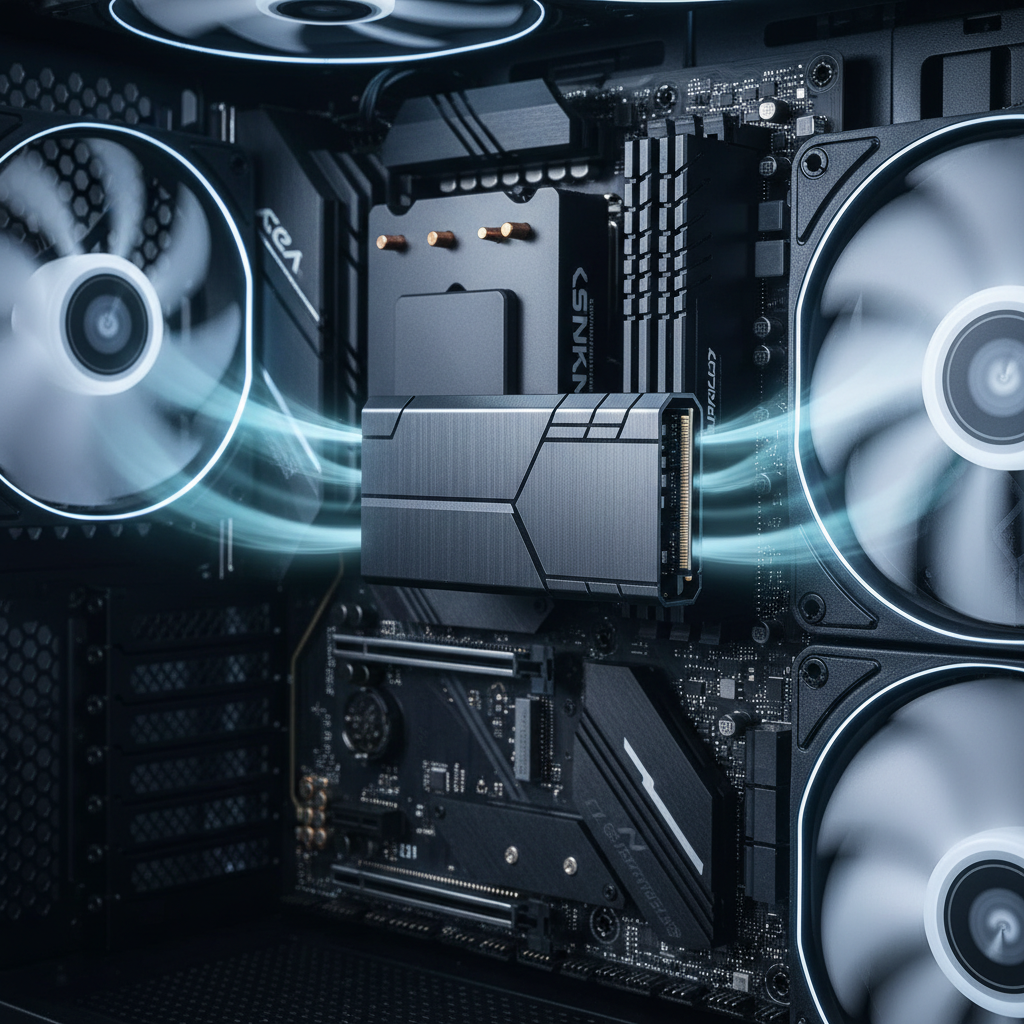
Step 4: Plan the install so performance stays consistent
- Update BIOS/firmware if needed, especially on newer platforms.
- Use a heatsink when the drive or platform expects one.
- Leave free space, and avoid filling the drive with one giant game archive.
Common mistakes that waste money (or even slow you down)
Plenty of people buy a “faster” SSD and see little change because the bottleneck sits elsewhere, or the drive throttles.
- Buying PCIe 5.0 without cooling headroom: Throttling can erase the advantage, especially during long installs or big file moves.
- Ignoring capacity: A smaller drive that stays full often feels worse than a slightly slower model with breathing room.
- Mixing up benchmarks with gaming reality: Peak sequential reads look impressive, but many game loads depend on mixed IO and CPU work too.
- Cloning without cleanup: Cloning a cluttered OS drive can carry over issues. Sometimes a clean install or at least trimming startup bloat helps.
According to Kingston, SSD performance can be influenced by workload type and available free space, which lines up with what most gamers notice: the drive feels fastest when it’s not constantly fighting for room.
Conclusion: what to buy if you just want faster gaming loads
If your goal is the best ssd for gaming fast load times, the most reliable play in 2026 is still a high-quality PCIe 4.0 NVMe in 2TB, ideally TLC and from a reputable product line with stable sustained behavior. PCIe 5.0 makes sense when you already know your platform can cool it, and you want a longer runway for future storage-heavy games.
Your next action can be simple: check your slot compatibility, choose capacity based on your actual library, then pick the best-priced drive in the right tier from a brand with solid support and warranty. That’s usually how you end up with a setup that feels fast every day, not just in a screenshot benchmark.
FAQ
What is the best SSD for gaming fast load times on a PCIe 4.0 motherboard?
In many builds, a 2TB PCIe 4.0 TLC NVMe with good sustained performance is the “sweet spot.” It’s fast enough for modern games, and pricing is often more reasonable than PCIe 5.0.
Will a PCIe 5.0 SSD make games load instantly?
Usually not. Some loads improve, but game engines and CPU work still play a role. PCIe 5.0 is more likely to shine in heavy transfers, content creation, or future titles that lean harder on newer IO paths.
Is DRAM important for a gaming SSD?
It depends on how you use the drive. DRAM can help keep performance steadier when the drive is busy with updates, installs, and a big library. A good DRAM-less model can still feel great if you keep free space and don’t hammer it with huge writes daily.
How much SSD space do I need for gaming in 2026?
For many players, 2TB is the comfortable choice if you keep several large titles installed. If you rotate installs frequently and don’t mind managing space, 1TB can work, but it fills up fast with today’s game sizes.
Does an SSD reduce stuttering in open-world games?
It can, especially if the stutter comes from asset streaming and your old drive is slow or nearly full. But stutter can also come from CPU limits, shader compilation, driver issues, or background apps, so it’s not always a storage-only fix.
What should I look for in a PS5-compatible SSD?
Follow Sony’s guidance for compatible expansion storage, then focus on a drive with strong real-world consistency and a heatsink that fits the bay. Thermal stability matters because the expansion slot sits in a more enclosed space.
Should I install games on a separate SSD from Windows?
Many setups work fine either way. A separate game drive can make it easier to manage space and reinstall Windows without touching your library, but a single larger SSD is often simpler and still fast.
When should I ask a professional for help installing an SSD?
If you’re unsure about laptop disassembly, worried about warranty seals, or you’ve had past issues with data loss, a local repair shop can be a sensible choice. If you’re cloning drives, consider professional help when the system already shows instability or frequent crashes.
If you’re trying to pick an SSD quickly, a practical approach is to shortlist 2–3 models that match your platform and capacity, then choose based on cooling needs and warranty support rather than chasing the biggest peak speed number.