
how to fix steam cloud sync conflicts usually comes down to one thing: Steam sees two different versions of the same save file and won’t guess which one you meant to keep.
That pop-up is stressful because the wrong click can roll back hours of progress, but the good news is you can often resolve it safely if you slow down and verify which copy is newer.
This guide focuses on practical steps that work for most Steam games on Windows, with a few notes for Steam Deck and macOS where the file paths differ. I’ll also call out the common traps, like trusting timestamps that don’t match your time zone or assuming “Cloud” always means “newer.”
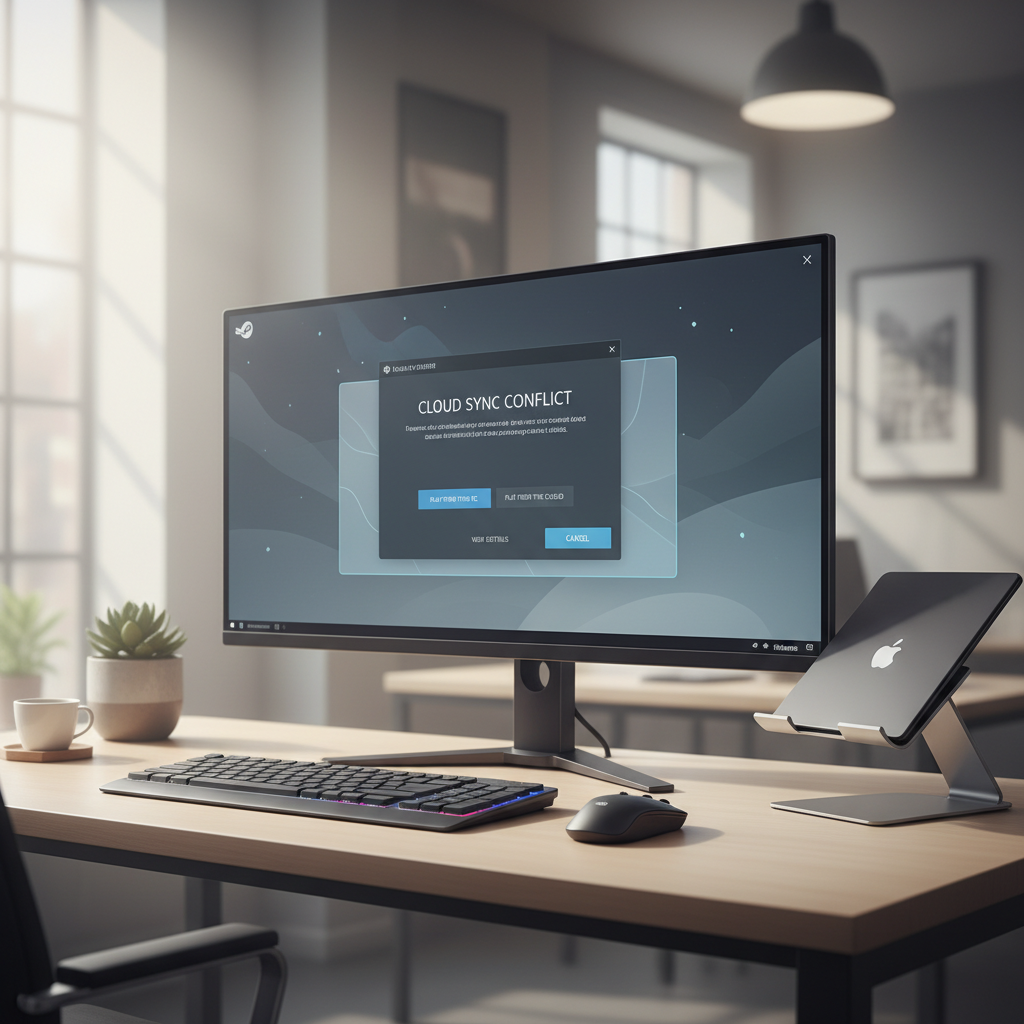
What a Steam Cloud Sync Conflict actually means
A Steam Cloud sync conflict appears when Steam detects that your local save data and the copy stored in Steam Cloud don’t match. Steam pauses syncing and asks you to pick one, because overwriting the wrong side can permanently replace the version you wanted.
According to Valve (Steam Support), Steam Cloud is designed to keep game data in sync across devices, but it relies on games writing their save files correctly and on your devices syncing at the right time. When either side misses an upload or download, you can end up with two competing versions.
Common real-world triggers
- You played offline (Wi‑Fi drops, laptop sleep, Steam Deck in airplane mode) and later reopen Steam online.
- You close a game too fast, or Steam is closed/crashes before the upload finishes.
- You switch devices quickly: PC → laptop → Steam Deck, before the previous device finishes syncing.
- Time and timestamp weirdness: different time zones, incorrect system clocks, or daylight saving shifts.
- Multiple save locations: some games keep both a profile save and separate per-character saves, and only part syncs.
Quick safety checklist before you click anything
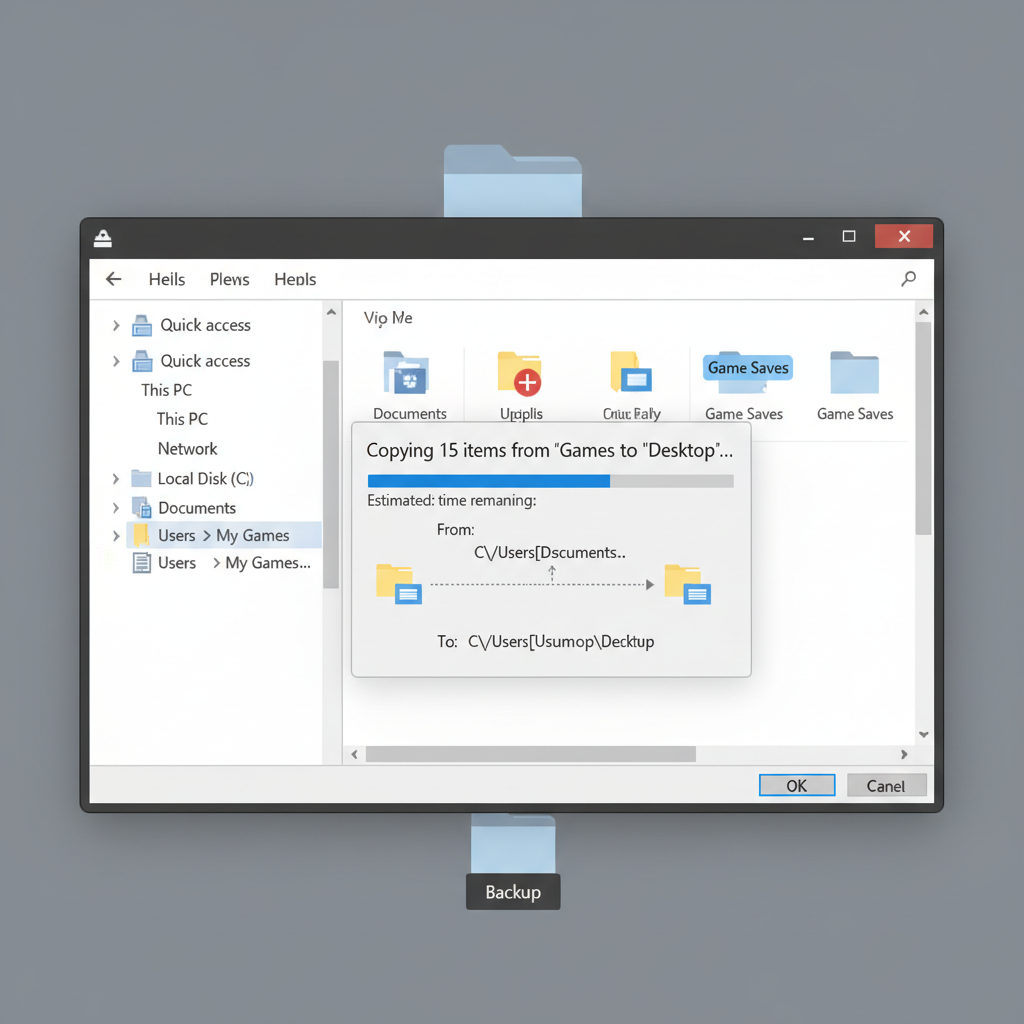
If you only do one thing before you learn how to fix steam cloud sync conflicts, do this: back up the local save folder first. It takes a minute and removes most of the risk.
Fast “don’t lose progress” checklist
- Do not launch the game again until you decide which side wins. Launching can create a third version and muddy the trail.
- Back up local saves: copy the game’s save folder to your Desktop (or an external drive).
- Check your last real play session: which device did you play on most recently, and was it online?
- Verify system clock: confirm Windows time/time zone is correct, especially if timestamps look suspicious.
If you’re not sure where a game saves files, a quick starting point is the game’s Steam Community guides or the PCGamingWiki entry for that title. Many games store saves under Documents, AppData, or inside the Steam userdata folder.
How to choose the correct version: Local vs Cloud
Most conflict dialogs show two options, usually “Local” and “Cloud,” with timestamps and sometimes file sizes. The trick is reading those hints like a detective, not taking them at face value.
Use this decision table
| Clue you see | What it usually suggests | What to do |
|---|---|---|
| You just played on this PC, online, and quit normally | Local is likely newest | Choose Local, then let Steam upload |
| You played on another device (Steam Deck/laptop) more recently | Cloud may hold the latest | Choose Cloud on this PC, then verify in-game |
| Cloud timestamp is newer but file size is much smaller | Cloud copy might be incomplete or an older slot | Back up local, consider choosing Local |
| Both timestamps look wrong (time zone/clock issues) | Timestamps unreliable | Compare save folder contents, then decide |
| You played offline, then reopened Steam online | Local is often the true latest | Choose Local to upload (after backup) |
When you should pause and inspect files
If the dialog doesn’t make sense, inspect the save folder. Look for “last modified” times on the actual save files and whether there are multiple slots. For games that use several files, one newer file can matter more than overall folder date.
One more practical tell: if you know you advanced a story chapter, some games write a larger save or create additional files. A sudden size drop on the “newer” side can be a red flag.
Step-by-step: how to fix steam cloud sync conflicts (safe workflow)
This is the workflow I’d use for most players because it minimizes the chance of overwriting something important.
1) Back up local saves
- Close the game.
- Exit Steam (Steam menu → Exit) if you want to be extra cautious.
- Copy the save folder to a backup location.
2) Pick the version that matches your last known progress
- If you last played on this machine and remember quitting normally, choose Local.
- If you last played elsewhere, choose Cloud, then confirm your progress once the game opens.
3) Let the sync finish before switching devices
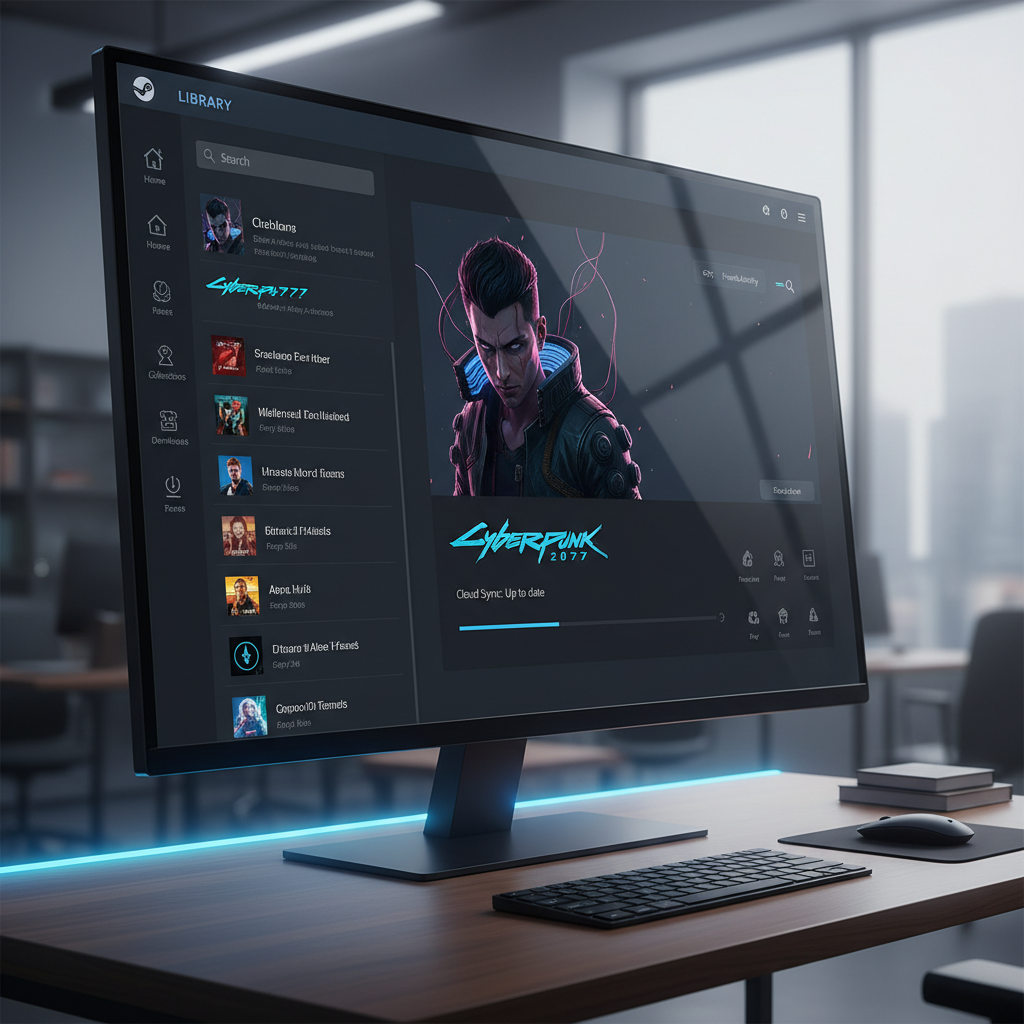
- Wait until Steam finishes syncing (you typically see a brief “Syncing” status on the game in your Library).
- Only then open the game on another device.
4) Confirm in-game, then do a clean exit
Load into the game, verify the save slot or progress marker, then save once (if the game allows manual saving) and exit to the main menu before quitting. That extra clean exit often forces a final write, which makes the next sync smoother.
If the conflict keeps coming back: prevention that actually helps
Recurring conflicts usually mean the game saves in a quirky way, or one device regularly misses the upload window. You can’t fix every edge case, but you can reduce repeats.
Practical prevention tips
- Don’t alt+F4 at the worst moment: some games write saves on exit, not continuously.
- Give Steam 10–30 seconds after quitting before sleep/shutdown, especially on laptops.
- Keep system time correct on every device; mismatched clocks make conflict dialogs misleading.
- Limit device hopping during long sessions: let one device sync fully before moving to the next.
- Consider per-game Cloud toggle if a specific title is constantly problematic (Library → game → Properties → General → Steam Cloud).
Disabling Steam Cloud for one game is not “wrong,” it just shifts responsibility to you for moving saves. For some older games or heavily modded setups, that tradeoff is worth it.
Common mistakes (and how to avoid them)
Most bad outcomes come from rushing, not from Steam being “broken.” A few patterns show up again and again.
- Assuming Cloud is always the latest: Cloud can be older if the last upload never happened.
- Opening the game to “check” before deciding: that can generate a fresh local save and overwrite something on exit.
- Ignoring multiple save slots: you might have the right slot locally but choose Cloud and lose that slot.
- Mixing mods across devices: some mods change save format; swapping between modded and unmodded can create confusing conflicts.
If you’re juggling mods, keep it simple: sync your mod list (or avoid swapping devices mid-run), and back up saves more often than you think you need.
When you may need deeper troubleshooting (or support)
Sometimes how to fix steam cloud sync conflicts is less about “picking the right button” and more about diagnosing why a particular game won’t keep consistent saves.
Escalate when you see these signs
- Conflicts appear every launch, even after you resolve them and wait for syncing.
- Your saves load but progress is corrupted, missing chapters, or wrong profile.
- Steam reports sync errors, not just conflicts, across multiple games.
At that point, check Steam’s built-in troubleshooting and server status, then consider reaching out. According to Valve (Steam Support), Cloud issues can relate to connectivity, client state, or game-specific behavior, and support may ask for logs or reproduction steps.
If you suspect drive issues, account issues, or permissions problems on Windows, it can be worth consulting a qualified technician, because “fixes” like changing folder permissions can break other software if done carelessly.
Key takeaways you can follow in 2 minutes
- Back up local saves before choosing Cloud vs Local.
- Use your last real play session as the truth, timestamps second.
- Let Steam finish syncing before you shut down or switch devices.
- If a game is a repeat offender, consider disabling Cloud for that title and managing saves manually.
If you want one action today, make a “Saves Backup” folder and drop copies there before big story missions, mod installs, or device switching. It’s boring, but it works.
FAQ
How do I fix Steam Cloud sync conflicts without losing my save?
Back up the local save folder first, then choose the version that matches your most recent play session. If you just played offline, local is often the safer pick, but verify file timestamps and sizes if they look odd.
Should I choose “Upload to Steam Cloud” or “Download from Steam Cloud”?
Choose upload when your local device holds the newest progress, choose download when another device likely uploaded the latest. If you are unsure, pause and compare the save folder contents before committing.
Why does Steam Cloud say it’s newer, but my progress is older?
That usually happens when the last upload didn’t complete, or when timestamps don’t reflect your actual play time due to clock or time zone issues. File size and last-modified times inside the save folder can be more reliable than the dialog alone.
How can I find where a Steam game stores save files?
Many games save under Documents, AppData, or Steam’s userdata directory, but it varies by title. Community guides and PCGamingWiki typically list paths, and you can also search your drive for recently modified files named like “save” or “profile.”
Does Steam Cloud sync include screenshots, settings, or mods?
Usually it focuses on game saves and sometimes configuration files, but it depends on how the developer integrated Steam Cloud. Mods are typically outside Steam Cloud unless the game or a launcher explicitly stores mod data in synced folders.
What if the conflict happens on Steam Deck?
The logic stays the same: determine which device has your latest progress, then pick that side and wait for syncing before switching again. Steam Deck is more likely to hit conflicts after offline play or sleep, so giving it a moment to sync after quitting helps.
Can I disable Steam Cloud for just one game?
Yes, you can usually disable it per title in that game’s Properties. It can reduce conflicts for problematic games, but you’ll want a manual backup routine if you switch devices.
Is it safe to delete Steam Cloud data to stop conflicts?
It can be risky because you might remove the only good copy of your save. If you’re considering that route, back up local files first and review Steam Support guidance; if anything looks unclear, getting help is the safer move.
If you’re still stuck in a loop and want a more hands-off way to deal with it, consider setting up a simple backup routine (even a dated ZIP of your save folder) before you troubleshoot further, it keeps you free to test fixes without worrying about losing progress.